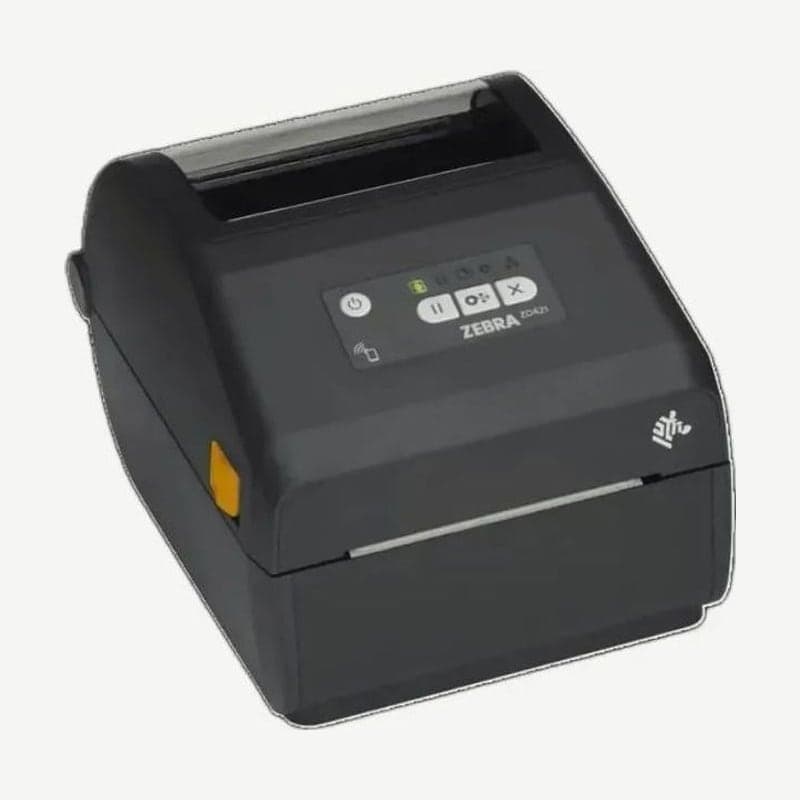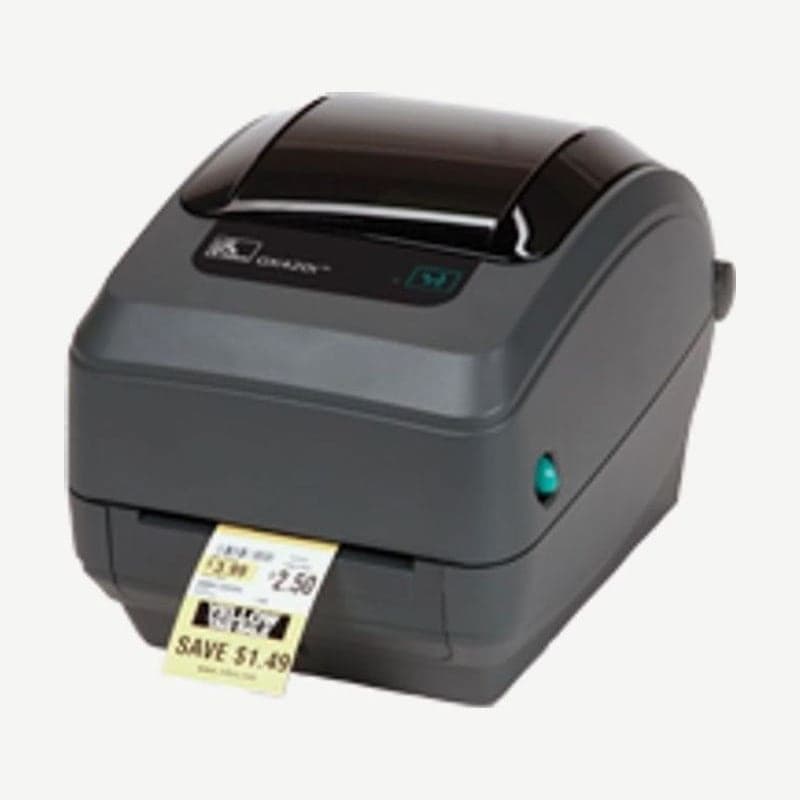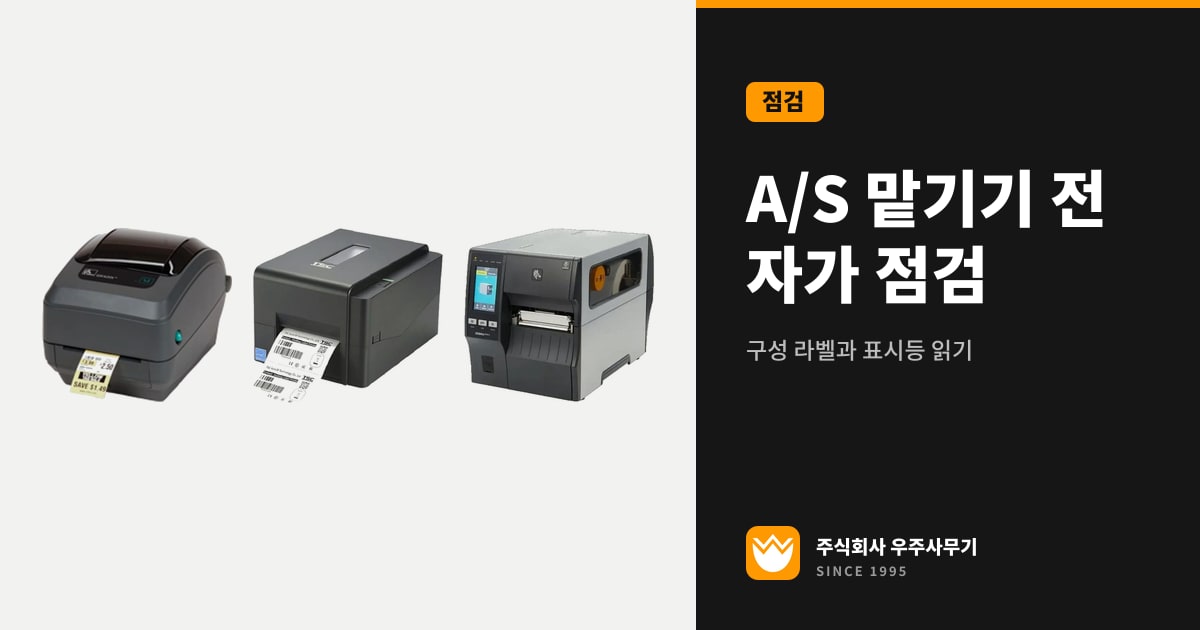
Before you send a label printer in for service, do two things first: read the status light and print one configuration label. If the ZD421 or GK420t prints a normal configuration label, the printer's basic printing works, so check the PC connection and the supplies first.
If the printer can't print even one configuration label, or the status light signals that it needs service, that is when you send it to the service center. When you request service, having three items—the model name, serial number, and firmware version—plus a photo of the configuration label narrows down the cause quickly.
Printing a configuration label on 6 models
| Model | How to print | What prints |
|---|---|---|
| Zebra ZD421, ZD621 | In Ready state, press and hold FEED and CANCEL together for 2 seconds | Printer and network configuration reports |
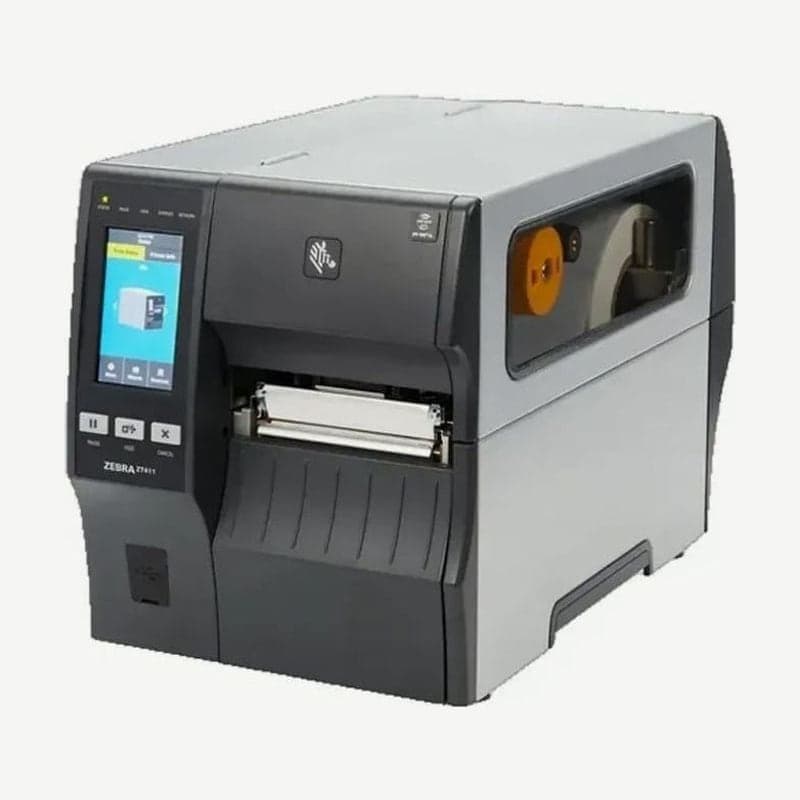
| Zebra ZT411, ZT421 | In Ready state, hold FEED and CANCEL for 2 seconds, or Menu > System > Settings > Print: System Settings | Printer and network configuration labels (the menu prints only the printer configuration label; for the network label, use Menu > Connection > Networks > Print: Network Info) |
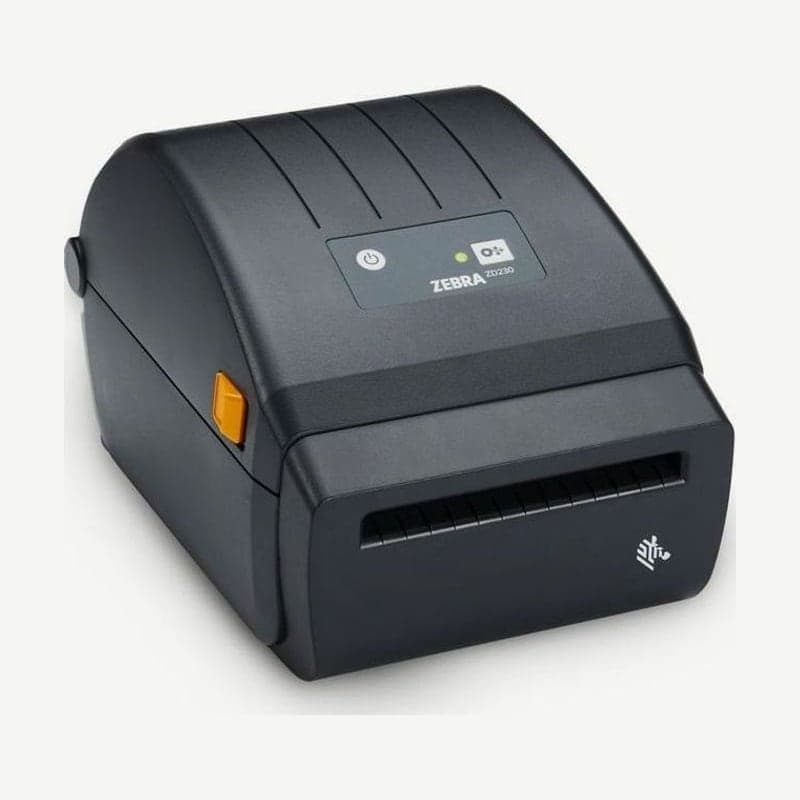
| Zebra ZD230 | In green Ready state, hold the FEED button for about 2 seconds and release it when the status indicator flashes once | Printer and network configuration reports |
| Zebra GK420t | When the status light is green, hold FEED and release it when the light flashes once | Printer configuration label |
| TSC MH241 | Menu > Diagnostic > Print Config. | Current settings and a printhead test pattern |
| TSC TE210 | Turn the power off, hold FEED while turning it on, and release when the LED blinks amber 5 times after blinking red 5 times | Self-test label |
After the self-test, the TSC TE210 enters dump mode, so anything you send next prints as strange characters. Turn the TE210 off and on once to exit dump mode.
The ZT411 configuration label shows the firmware version. If you take a photo of the label, you don't have to read out the darkness, speed, and media settings one by one when you request service.
Fault signals by status light color
The Zebra GK420t reports its status with a single light, and some of the colors below are signals you can resolve yourself.
| Status light | Meaning | What to do |
|---|---|---|
| Flashing red | Media or ribbon out, or printhead open | Load supplies or close the cover, then press FEED |
| Double flashing green | Paused | Press FEED to resume printing |
| Flashing amber | Printhead over temperature | Wait for it to cool; printing resumes on its own |
| Solid amber right after power-on | Power-on self test (POST) failed | Have it checked at the service center |
| Alternately flashing green and red | FLASH memory is not programmed | Service center repair |
| Flashing red, red, green | Critical failure of the printhead or motor | Service center repair |
If the light turns solid amber while printing, turn the power off and on; if the printhead needs to cool down, leave it off for 5 minutes or more before turning it on. If the GK420t still shows amber after you turn it back on, it needs repair.
Red, amber, and green flashing in sequence means the printer is defragmenting its memory, which is not a fault, and turning the power off at this point damages the printer. On the TSC TE210, a solid red LED means the printhead is open, and a flashing red LED means ribbon empty, paper empty, or paper jam.
Self-check steps for 4 symptoms
Power light is off
Check the two connections: from the wall outlet to the power adapter, and from the adapter to the printer. On the GK420t, unplug the power cord from the outlet, wait 30 seconds, plug it back in, and turn on the power switch.
No response to print commands from the PC
Start by printing one configuration label using the method in the table. If the configuration label prints, the printer's basic operation is normal, so check that the USB or LAN cable is firmly plugged in and that the printer and port selected on the PC are correct. If the driver shows up as an "Unspecified device" or the print spooler has stopped, continue with fixing label printer driver installation errors; if the IP address of a Zebra printer used over LAN has changed, continue with Zebra printer network (IP) settings.
On the TE210, thermal transfer printing also prints nothing if the ribbon is loaded with the ink side reversed or the ribbon doesn't match the labels. Send the same label once more from Goodlabel Designer (free label design software), and if it still doesn't print, move on to the next step.
Faint print and vertical lines
Check in 3 steps in this order: printhead cleaning, darkness and speed adjustment, and the ribbon and label combination. Fixes by symptom are in fixing label print quality problems and printhead cleaning. If vertical lines remain in the same spot after cleaning, check for damaged dots with the self-test in when to replace the printhead.
Label slipping and misaligned print position
On the ZT411, if the position is off on 1 to 3 labels, check for a dirty platen roller; if the position keeps drifting up or down, check the media type setting and the calibration. Calibration buttons and menus for each model are covered in how to calibrate the label sensor. If labels feed into the ZT411 wobbling from side to side, move the media guides in only until they touch the label edges, and if nothing changes, check the printhead pressure.
If the label image prints shifted to the left or right, first check the direction in which the previous label was torn off. When tearing on the ZT411, pull down and to the left so the tear-off bar cuts through the liner. Check the roller condition in checking and replacing the platen roller.
5 things to have ready when you request service
- Write down three items: the printer model name, the serial number, and the firmware version printed on the configuration label.
- Note the status light color and number of flashes, and on models with a display such as the ZT411, take a photo of the error message.
- Set aside one actual label with the problem and one label from when it printed normally, and note the label size (mm) and ribbon type you were using.
- Tell us which of the three connections you use—USB, LAN, or Bluetooth—and which printing program you use, such as Goodlabel Designer.
- Check when you purchased the printer. You have a 1-year warranty from the date of purchase from Wooju OA.
4 packing steps before shipping by courier
Pack and ship industrial printers such as the ZT411 in the order below. For the desktop GK420t as well, remove the loaded label roll before shipping so the printer and labels aren't damaged in transit.
- Turn off the power and disconnect all cables: power, USB, and LAN.
- Remove the label roll, ribbon roll, and any loose objects inside.
- On the ZT411, turn the printhead-open lever to close the printhead.
- Pack it in the original box or one suitable alternate box so it isn't damaged in transit.
If Cut Error appears on a ZD421 with a cutter, the cutter is not a user-serviceable part, so don't open the cutter cover or put your fingers in; send it as is. For consultation and remote support in Korea, contact Wooju OA (info@woojuoa.co.kr, +82-2-703-0332).