The platen roller is not a part with a fixed replacement interval, such as a set number of months or rolls; you decide when to replace it by its symptoms. If labels still slip, stick, or jam after you take the roller out and clean it with 99% or higher isopropyl alcohol, that is when you replace it.
The platen roller is the rubber roller directly under the printhead that supports the labels and feeds them forward. It is both the print surface and the drive roller, so a damaged surface makes the print position shift, and adhesive or debris on it can damage the printhead as well.
Platen roller symptoms that call for replacement
| Symptom | What to do first | Replacement decision |
|---|---|---|
| Labels slip, so the image stretches or is distorted | Clean the roller | Replace if nothing changes after cleaning |
| Labels stick to the roller or jam and stop | Remove wrapped labels and clean off the adhesive | Replace if labels still stick after cleaning |
| Gray line on the blank label | Clean the roller | Keep using it if cleaning solves the problem |
| Surface worn smooth and polished, so it slips | Check the surface condition | Replace |
| Scratches or gouges such as knife cuts | Check the surface condition | Replace |
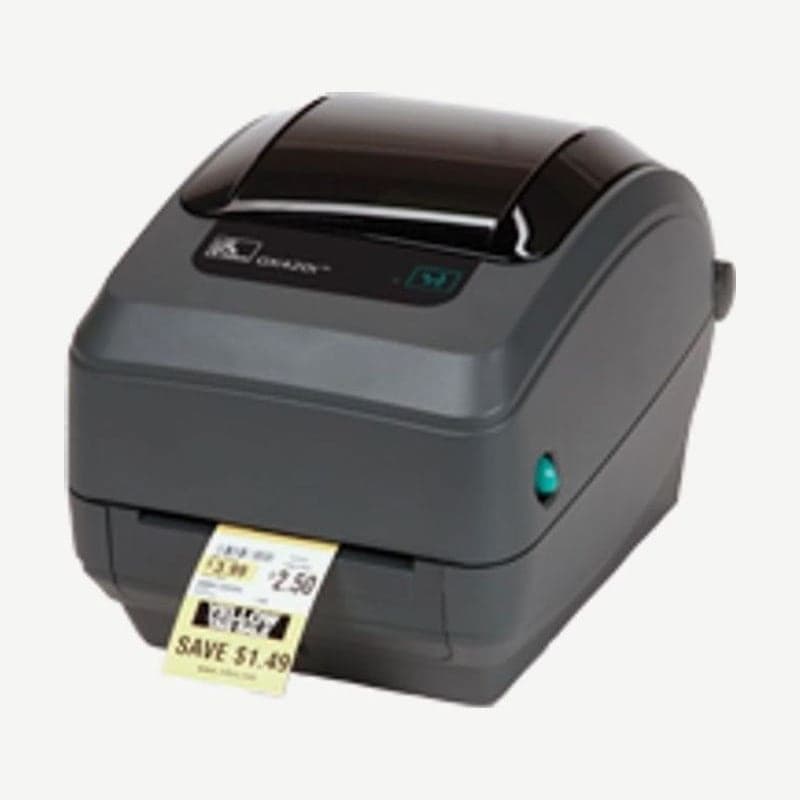
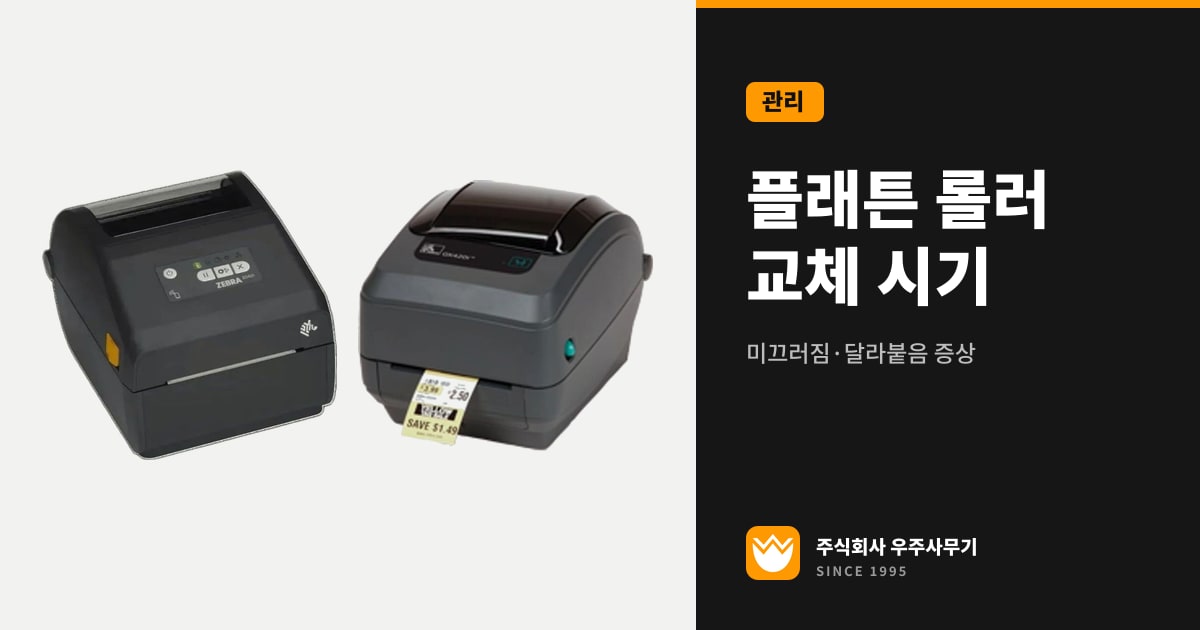
For the Zebra GK420t, there are three reasons a roller loses traction on the labels: foreign objects are attached to its surface, the smooth rubber surface has worn and become polished, or the flat surface has been damaged by cuts from something like a box knife. Foreign objects come off with cleaning; a worn or cut surface means replacing the roller.
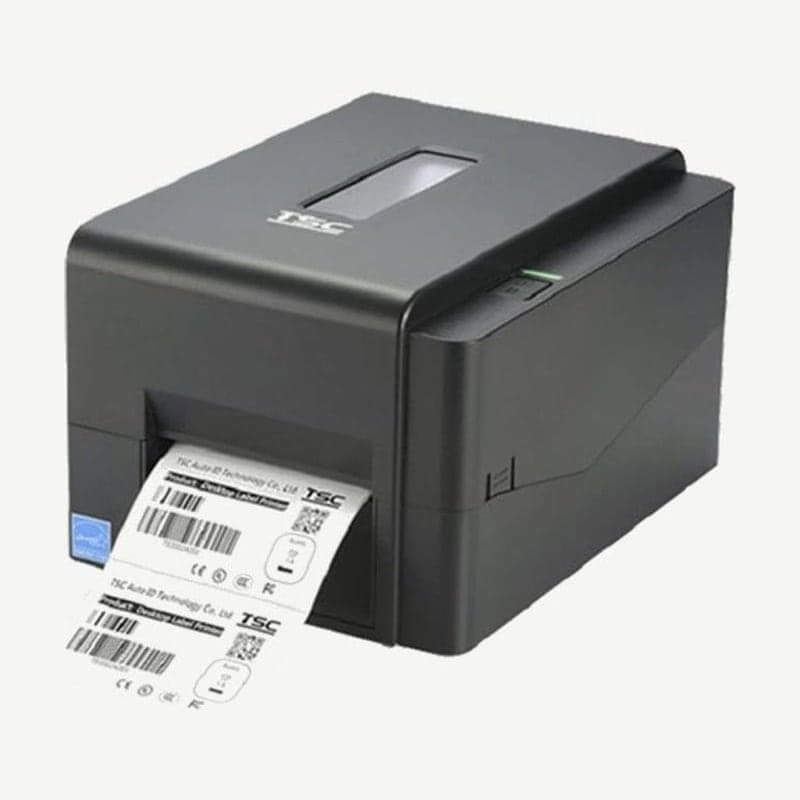
On the TSC TE210 and MH241, a gray line on a label with nothing printed on it means the platen roller is dirty, so clean the roller. If print still comes out with vertical blank lines after you clean the roller, also check for damaged printhead dots; the steps are in when to replace the printhead.
Removing and cleaning the platen roller on desktop printers
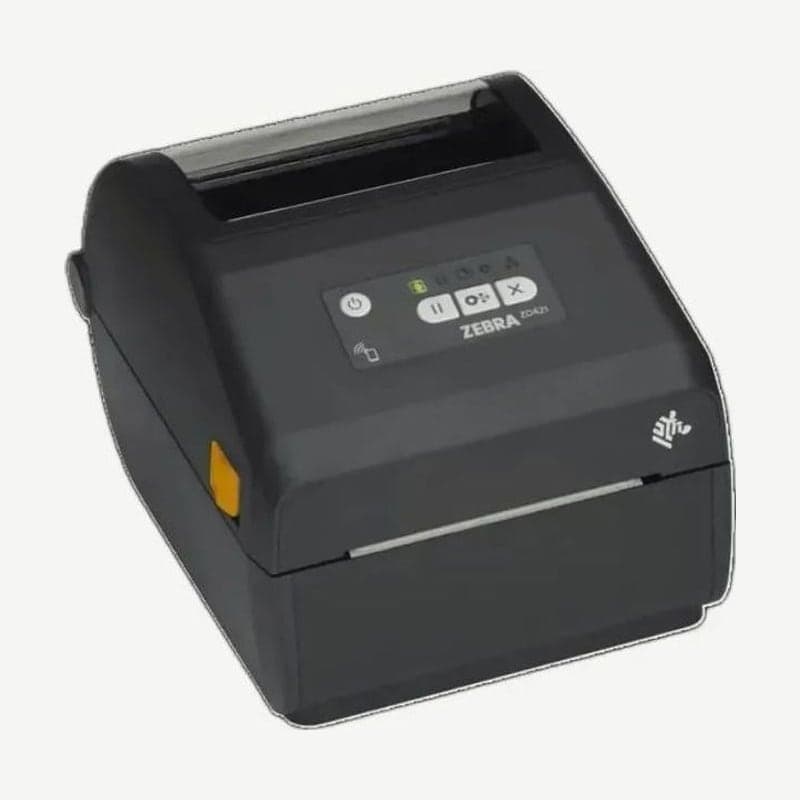
On desktop models such as the Zebra ZD421 and GK420t, you lift the roller out without tools. The 7 steps below are for the ZD421, and the GK420t works the same way: release the left and right tabs and lift the roller out.
- Open the cover, and if a label dispenser is installed, open its door too, then clear the labels off the roller.
- Pull the platen-bearing latch release tabs on the left and right toward the front of the printer and rotate them up.
- Lift the roller out of the printer's bottom frame, and slide the gear and the two bearings off the shaft.
- Wipe from the center outward with a lint-free swab or cloth very lightly moistened with 99.7% medical-grade isopropyl alcohol. Discard each used swab and switch to a new one until you have cleaned the whole surface.
- If the roller had heavy adhesive build-up or a label jam, wipe it once more with a new swab to remove adhesive and oil that the first pass loosened but did not fully remove.
- Check that the bearings and drive gear are on the shaft, then align the roller with the gear on the left and lower it into the frame.
- Rotate the latch tabs toward the rear of the printer until they snap into place, let it dry for 1 minute, then close the cover and reload the labels.
If slipping or jamming is unchanged after this cleaning, remove the roller the same way and install a new roller of the same resolution and type.
Roller colors by resolution and label type
ZD421 and ZD621 platen rollers are color-coded by resolution and type. Standard rollers are black for 203 dpi and gray for 300 dpi, and linerless label rollers are reddish-brown for 203 dpi and brown for 300 dpi.
Don't swap in a different type of roller unless an upgrade procedure or Zebra Technical Support tells you to. If the wrong roller is installed, the printer stops operating normally and a variety of problems occur.
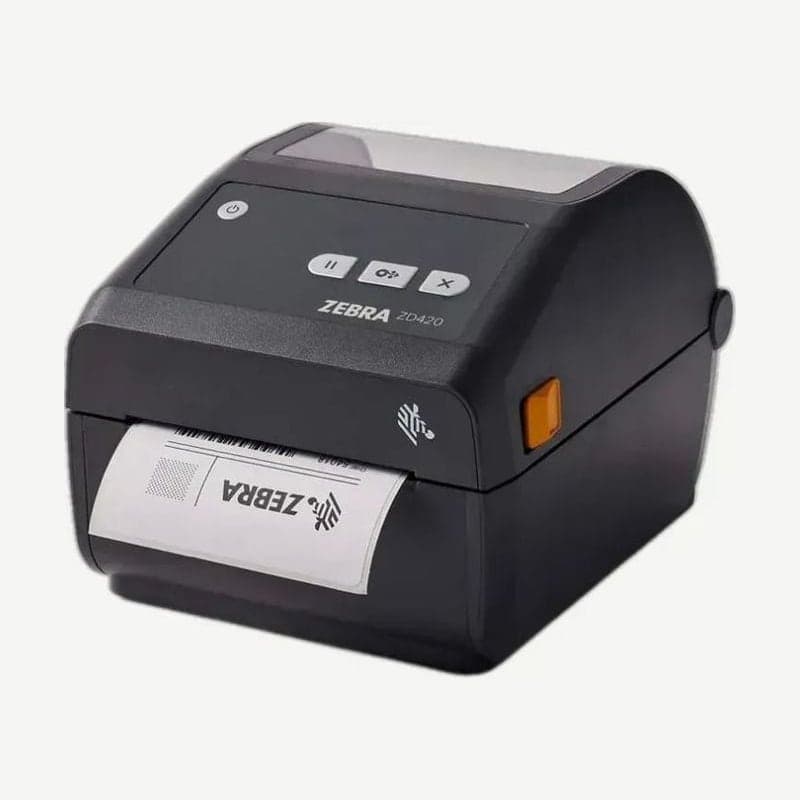
On the ZD420, which offers resolution conversion kits, the printhead and platen roller come together in one kit. Both parts are specific to a resolution, so don't replace only the printhead or only the roller.
Caring for linerless platen rollers
Don't wipe a roller for linerless labels (labels wound with the adhesive side exposed and no backing paper) with alcohol, and don't rub it. Using a solution or rubbing permanently damages the roller or shortens its life.
Only when dust has built up, lightly touch the adhesive side of a linerless label to the roller to lift it off, rotating the roller to cover every side. After many rolls, adhesive builds up in rings at both ends of the roller; remove these clumps before they come loose and transfer to the printhead.
If linerless labels keep sticking and jamming inside the printer, treat the non-stick coating as used up and replace the roller. For the same reason, don't use a swab on the dark brown linerless roller of the Zebra industrial ZT411 either, and don't apply commercial lubricants, which damage the roller surface.
Making the platen roller last longer
When the GK420t sits unused for a long time, the printhead can stick to the roller, so store it with a label or a piece of paper between the printhead and the roller. Before shipping it by courier, remove the loaded label roll and then pack it.
On an MH241 using labels narrower than 2 inches, fix the print head pressure position knob as far inside the label edge as possible. This setting prevents unnecessary friction between the printhead and the platen roller.
When to clean the roller differs by model. On the TSC TE210 and MH241, rotate the roller and wipe it with 99% isopropyl alcohol every time you load a new label roll, and on the ZD421, clean it when print quality drops. Cleaning intervals for the industrial ZT411 and ZT421 and the printhead cleaning steps are covered separately in printhead cleaning.
Even on industrial models such as the ZT411, the platen roller is a replacement part that wears out over time. If you need to order or install a replacement roller, let us know the model name and resolution and leave it with the Wooju OA service center.