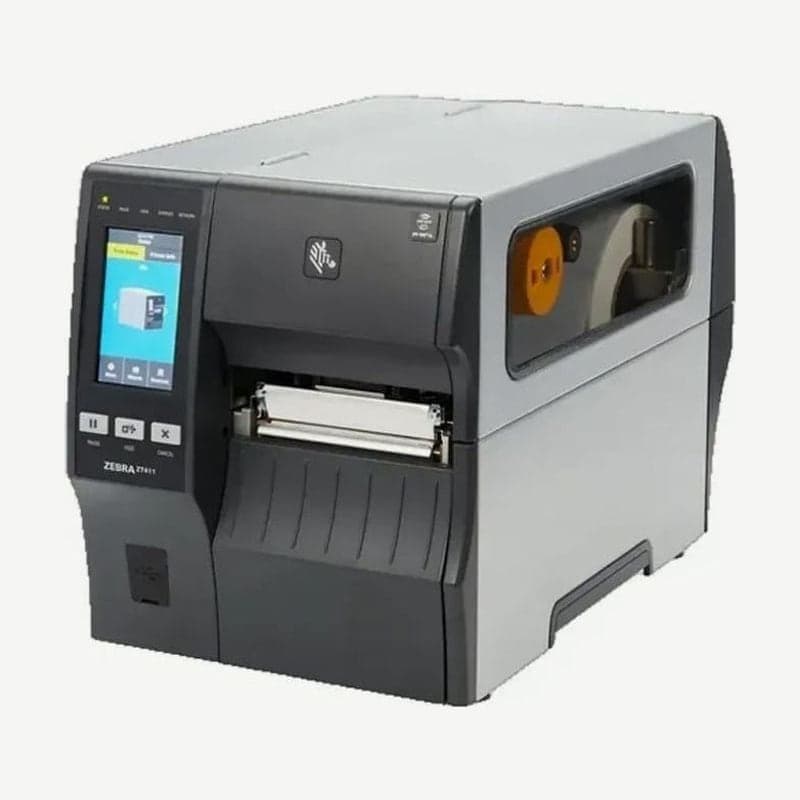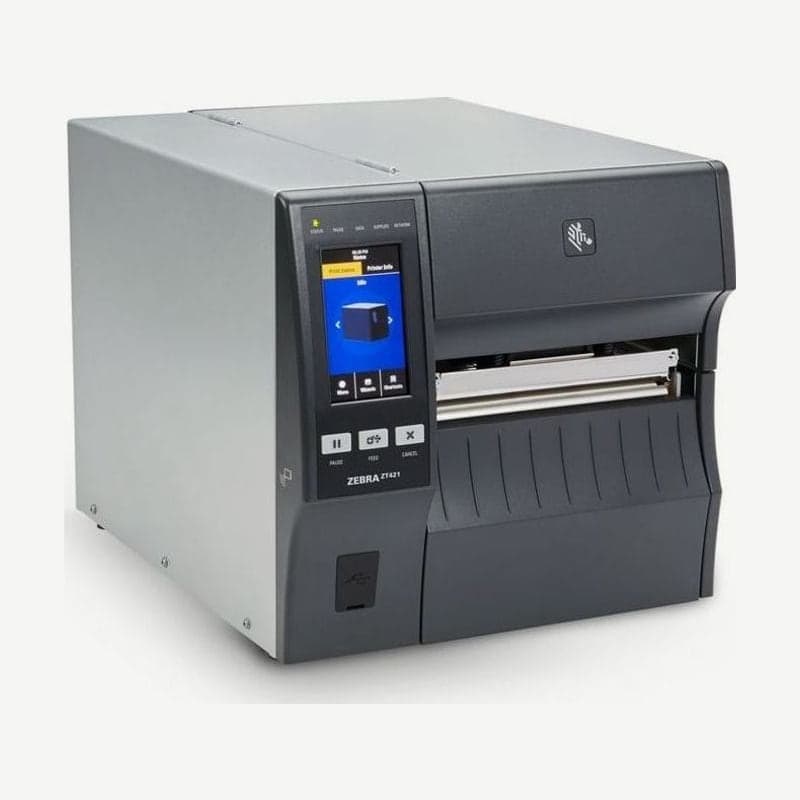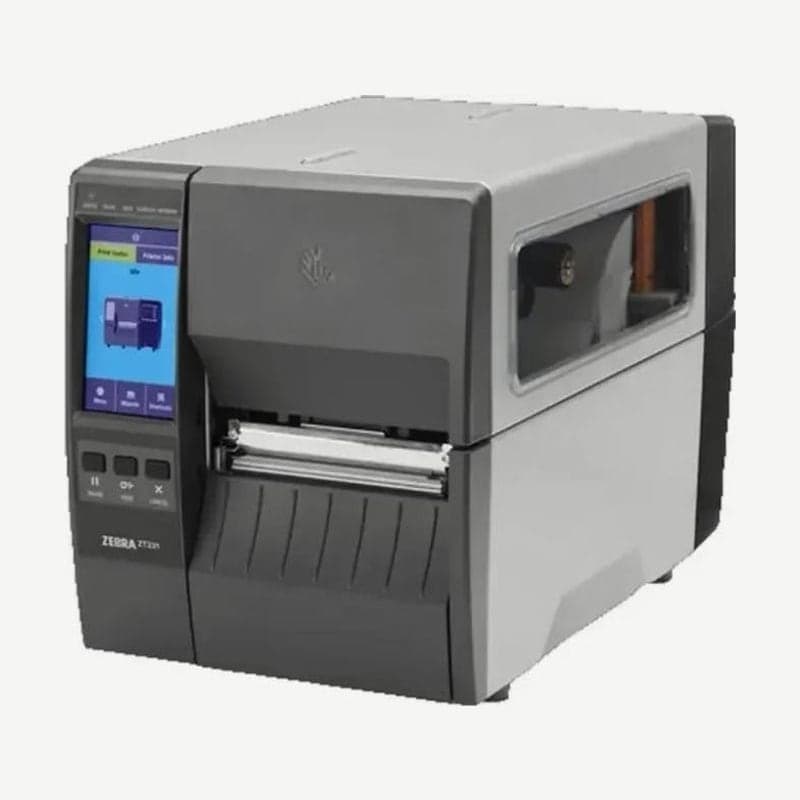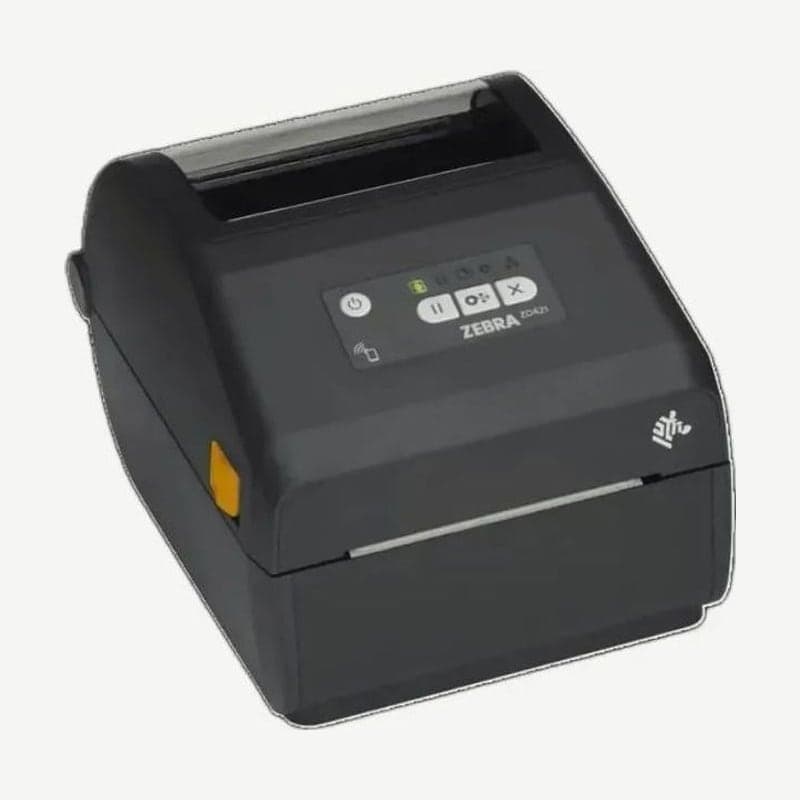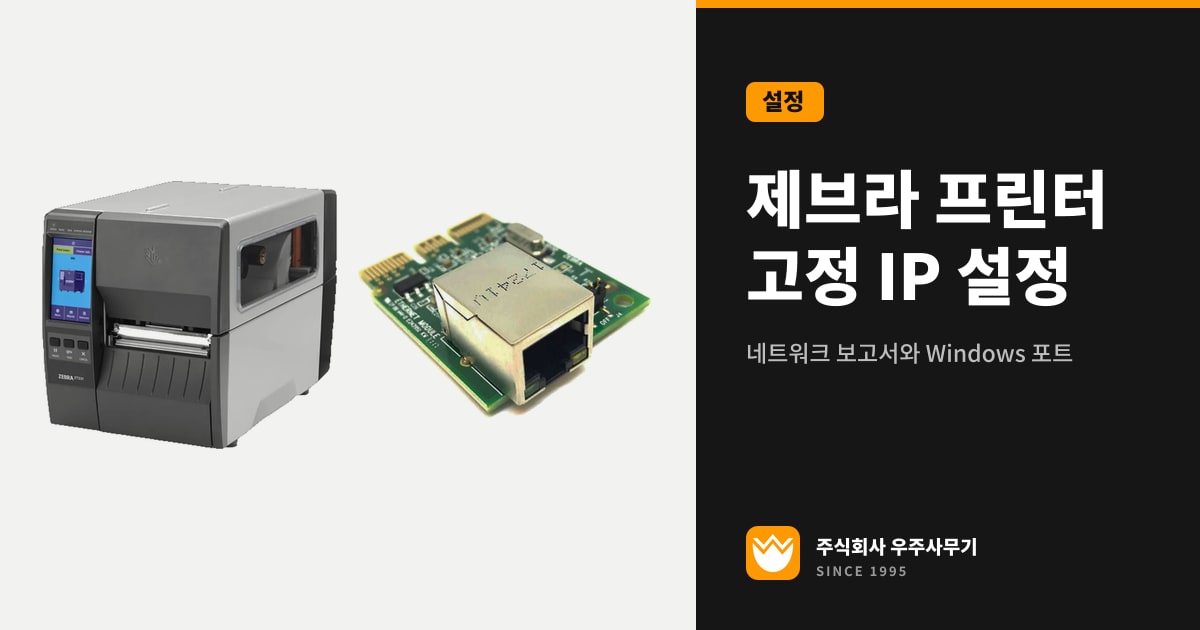
To use a Zebra ZD421 or ZT411 from 2 or more PCs over a network cable, set a static IP address first. The Zebra ZD421 ships set to DHCP (automatic assignment), so it gets a new IP address from the network each time it powers on, and because the Windows driver connects only to the IP address it got during installation, printing stops the moment the IP address changes.
The steps for a static IP address are the same on the ZT411, ZT231, and ZD621. Change the IP protocol to PERMANENT (shown in Korean on a Korean-language display), enter the IP address, subnet, and gateway, and then reset the network (Reset Network) to save the changes.
Checking the printer's current IP address
On the ZT411, ZT421, and ZT231, which have a display, you can see the IP address directly on the Printer Info tab of the Home screen. On the ZD421, which has no display, press FEED and CANCEL together for 2 seconds in the ready state to print the printer configuration report and the network configuration report, then check the IP entry on the network report.
On the ZT411 series, the same FEED+CANCEL for 2 seconds prints both reports, and the menu path is Connection > Networks > Print: Network Info. A single network report shows the settings of the installed print server and the MAC address, so use it to record the current state before you decide on a static IP address.
| IP in Printer Info | Meaning | What to do |
|---|---|---|
| 0.0.0.0 or 000.000.000.000 | Network connection failed; NETWORK light off or red | Check the light on the Ethernet connector on the back, both ends of the network cable, and the hub port |
| Any other value | Connection successful; NETWORK light green or yellow | Decide whether to make this address static |
On the ZT411 and ZT231, the wired NETWORK light means no Ethernet link is available when it is off, a 100 Base-T link when it is green, a 10 Base-T link when it is yellow, and an Ethernet error with no connection to the network when it is red.
Setting a static IP address from the ZT411, ZT421, and ZD621 display menus
First, get 1 IP address that doesn't conflict with other devices, plus the subnet mask and gateway address, from your office router or your company's network administrator. Enter each field as a number from 000 to 255.
- On the ZT411 Home screen, go to Menu > Connection > Wired > Wired IP Protocol and change it from ALL to PERMANENT.
- In Wired IP Address, enter the IP address you were given as 4 numbers separated by periods, such as 192.168.100.100.
- Enter the subnet mask in Wired Subnet and the gateway address in Wired Gateway, in the same 4-number format.
- Touch Connection > Networks > Reset Network to reset the print server. If you skip step 4, the settings from steps 1 to 3 don't take effect.
- Print the network report again with FEED+CANCEL for 2 seconds and check that the new IP address appears.
On a ZT231 with a Korean-language display, the same steps appear as the Korean equivalents of Connection > Wired > Wired IP Protocol (ALL to PERMANENT), Wired IP Address, Wired Subnet, Wired Gateway, and Connection > Networks > Reset Network. On ZT411 models with the Wi-Fi option, change the items of the same names under Connection > Wi-Fi (or WLAN), and choose whether wired or wireless takes priority in Connection > Networks > Primary Network.
On a ZT411 or ZD621 with Protected Mode enabled, you can't change network items from the display; you have to set them with the Protected Mode admin password. If you don't know the password, check with the person who installed the printer or with the service center first.
Setting a static IP address on the ZD421, which has no display
The ZD421 has no display, so you change it from the printer web page. In the address bar of a browser on a PC on the same network, enter the IP address from the network report to connect, and change the IP protocol and address in View and Modify Printer Settings > Network Communications Setup > TCP/IP Settings.
When you save the settings, the page asks for the print server account. The default account is in the user guide; be sure to change it to a different password the first time you set it up. After saving, reset the print server with Print Server Settings > Reset Print Server for the new IP address to take effect.
Besides the web page, you can assign the ZD421's IP address with 4 Zebra setup tools: Zebra Setup Utilities, Telnet, Mobile Apps, and ZebraNet Bridge.
Adding the printer with a static IP address in Windows 10 and 11
On its last screen, the Zebra Windows driver installer goes on to launch the Printer Installation Wizard. If you choose Network Port from the 4 connection types, the driver scans the local network for printers; check that the IP address of the ZT411 or ZD421 in the list matches the address you set as static earlier.
To add the printer from the standard Windows 11 screens, go to Start > Settings > Bluetooth & devices > Printers & scanners and select Add device. If the printer isn't in the list, select Add manually and proceed with one of the 5 options that appear for finding a printer. All 5 options can be used for a network printer.
The PC can find the printer only when both are connected to the same network. In an office with 2 or more routers or a separate wireless extender, first check that the PC is connected to the same router as the printer.
When printing stops after you change the IP address
A PC set up while the printer was on DHCP keeps looking for the old address once you set a static IP address on the printer. In that case, change the port the Windows driver uses to the new IP address, or remove the printer and add it again with the new IP address.
To change the port yourself, use 2 Windows PowerShell commands. Create a TCP port with the new IP address, as in Add-PrinterPort -Name "TCPPort:" -PrinterHostAddress "192.168.100.100", then attach the printer to that port with Set-Printer -Name "Printer name" -PortName "TCPPort:". Add-PrinterPort runs without administrator rights, but Set-Printer runs only in PowerShell with administrator rights.
If the IP address changes after the printer has been off for a while and is turned back on, the ZD421 is still on DHCP, and the PERMANENT setting above fixes it. If the printer gets no IP address at all with the network cable plugged in, check both ends of the cable and whether the Wired IP Protocol setting matches how your office network works (DHCP or static).
When you power cycle the printer after changing settings, let it fully boot up before turning it off, then wait 30 seconds before turning it back on. Turning a ZT411 back on right away without waiting 30 seconds can cause malfunctions.
If reports print but printing from the PC doesn't work, the steps for telling whether the problem is the printer or the connection are in self-checks before sending a label printer for service. Cases where the USB or network driver installation itself is blocked are covered separately in fixing label printer driver installation errors. Goodlabel Designer (free label design software) sends ZPL commands through the printer name and network port listed in Windows, and that print path is described in printing directly to ZPL, TSPL, and EZPL printers on glabel.kr.