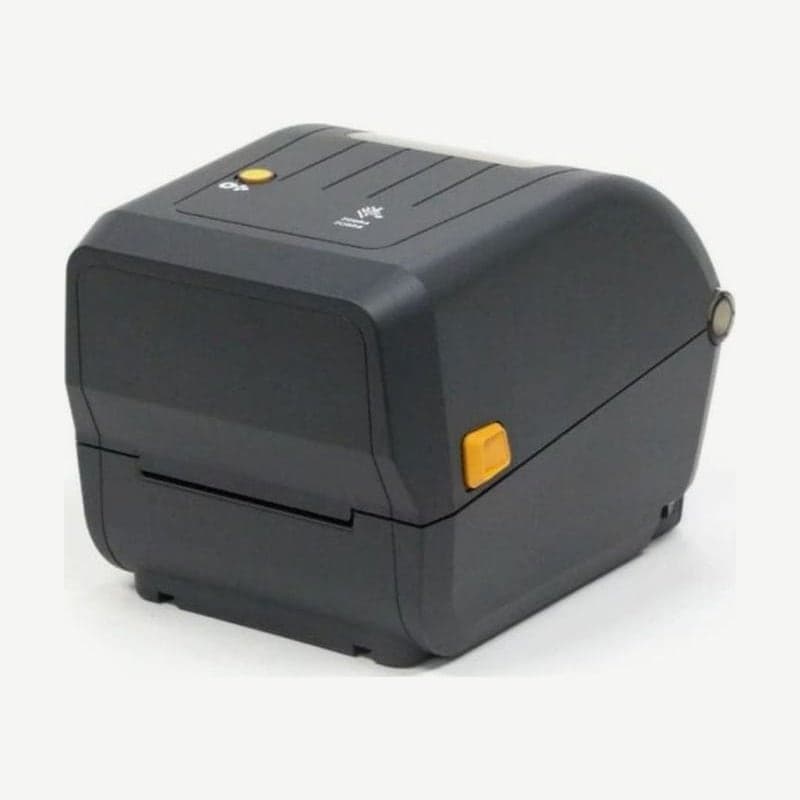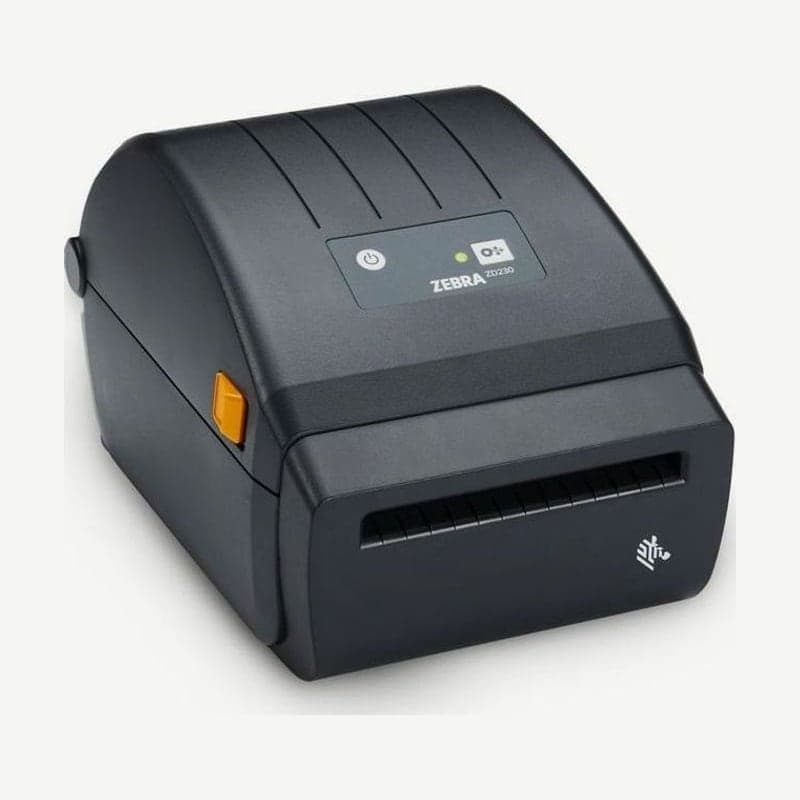
The ZD230D is the ZD230 direct thermal model that prints on direct thermal media without a ribbon, and its body size (220 x 176 x 151 mm) is the same as the ZD220 direct thermal model. What changed is that speed can be raised to 152 mm/s (6 ips), and you can choose configurations that come from the factory with Ethernet, Wi-Fi, or Bluetooth installed.
For setups such as warehouses or shipping areas where 2 or more PCs send waybills to 1 printer, order a network configuration. The connectivity modules are factory-installed options and cannot be added after delivery.
Speed and connectivity differences between the ZD220 and ZD230 direct thermal models
| Item | ZD220 | ZD230 |
|---|---|---|
| Print speed | Fixed at 102 mm/s (4 ips) | Set to 102 mm/s or up to 152 mm/s |
| Connectivity | USB 2.0 only | USB 2.0 standard; Ethernet, Wi-Fi, Bluetooth 4.1 factory options |
| Resolution, print width, memory | Same: 203 dpi, 104 mm, 128 MB each of flash and SDRAM | |
ZD230D rolls go up to 127 mm OD with 12.7 and 25 mm cores as standard, and folded fanfold media goes in through the rear opening. The similarly named ZD230DA is a separate model with its own spec sheet; its connectivity is USB 2.0 with a USB-serial option, and its flash memory is 8 MB.
3 factory-installed connectivity configurations
| Factory-installed configuration | Suited site |
|---|---|
| USB + 10/100 Ethernet | Connected to the office LAN so several PCs print together |
| USB + Bluetooth 4.1 (Apple MFi certified) | Printing near mobile devices |
| USB + Wi-Fi 802.11ac + Bluetooth 4.1 | Checkouts and workbenches where running a LAN cable is difficult |
The Wi-Fi 802.11ac configuration also includes Bluetooth Low Energy (BLE), so printer settings are changed with Android and iOS apps.
10/100 wired LAN and IP address management
Use CAT-5 or better UTP (RJ-45) LAN cables. If the indicator next to the port is green, it is connected at 100 Mbps; if amber, at 10 Mbps; if both are off, no link has been established.
The factory setting is DHCP, so on a personal network the router assigns a new IP address every time the power is turned on. The Windows driver finds the printer by the fixed IP it received at first installation, so if the address changes, printing stops. For stores that turn the printer on and off every day, fix the printer's IP in the router or get a static IP from the network administrator.
Check the current IP with a configuration report: in the green ready state, press FEED for about 2 seconds and release when the indicator flashes once, and the printer report and network report print together.
ZD230D driver installation steps
- Before connecting the printer to the PC and turning it on, run Zebra Setup Utilities and install the Windows driver first.
- When the installation wizard reaches the step to turn on the power, turn on the printer then.
- For network configurations, leave the IP on DHCP or assign it with the installation tool, Telnet, the mobile app, or ZebraNet Bridge.
Files are on the ZD230D download page. Printer languages are ZPL II and EPL2, and the older EPL1 line mode also works on the ZD230.