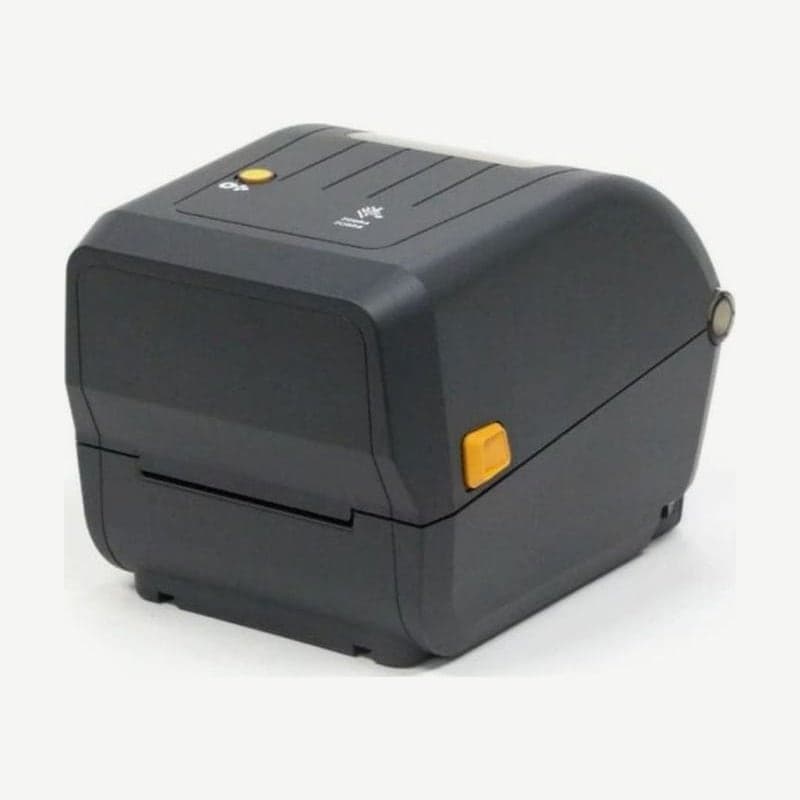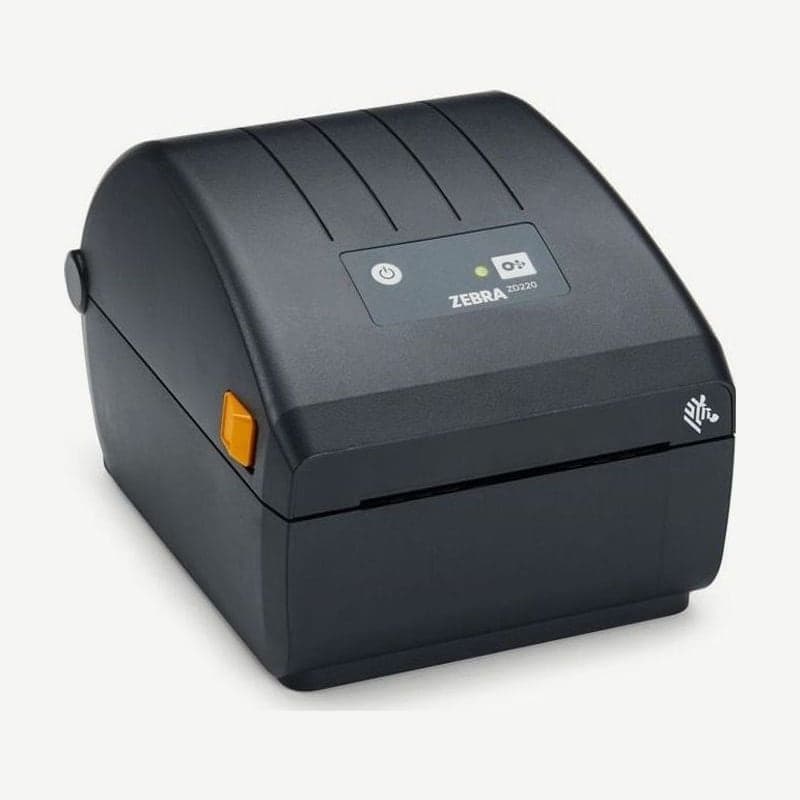
The ZD220 is a 4-inch Zebra desktop printer that connects to a PC only over a single USB 2.0 port. Its print width is 104 mm, it has one speed, 102 mm per second (4 ips), and there is no LAN port or Wi-Fi option.
For a store that keeps it next to one PC to print shipping labels or product labels, this configuration is enough. If several PCs need to share it over a network, the ZD230, which offers Ethernet and Wi-Fi as factory options, is the right fit.
Size and ribbon of the direct thermal and thermal transfer models
| Item | Direct thermal model | Thermal transfer model |
|---|---|---|
| Size (L x W x H) | 220 x 176 x 151 mm | 267 x 197 x 191 mm |
| Weight | 1.1 kg | 1.7 kg |
| Ribbon | Not used | 74 m, 34 mm OD, 12.7 mm core |
The thermal transfer model takes only one ribbon, 74 m, so labels and ribbon are used up at a 1:1 ratio. To load up to 300 m ribbons, you need the ZD230 thermal transfer model. Ribbon width is 33.8-109.2 mm.
Media specs and sensor positions
Media width is 25.4-112 mm on the thermal transfer model and 25.4-108 mm on the direct thermal model, thickness is 0.08-0.19 mm, and roll OD is up to 127 mm. The standard core inner diameters are 12.7 mm and 25.4 mm, and a 1.5 in core needs a separate adapter. Labels up to 991 mm long can be printed.
The black mark sensor moves only from the center to the left edge, and the gap sensor is fixed slightly off center. So media with back marks printed only on the right half cannot be read by the ZD220. When ordering new black mark media, make sure the marks are at the center or on the left.
Settings with the single FEED button
The controls are just the power button, the FEED button, and 1 STATUS indicator. In the ready state with the indicator lit green, hold FEED, count the blinks, and release at the number you want.
- Release at 1 blink to print a configuration report.
- Keep holding and release at 2 consecutive blinks to start SmartCal media calibration, which feeds a few labels to set the detection level.
- Releasing at the next 3 consecutive blinks restores factory defaults, so to calibrate only, release at 2 blinks.
If you replaced the roll with a new one of the same size, manufacturer, and batch, skip calibration and just press FEED 1-2 times to align the label position. Turn the power off by holding the power button for 4-9 seconds.
STATUS indicator colors
Blinking red means the media has run out, the cover is open, or media detection failed. Blinking orange means the head has overheated, and printing stops until it cools. Green repeating 2 short and 1 long means paused, and pressing FEED once resumes printing.
Driver installation order
Install the ZD220 driver on the PC before turning the printer on. The installation tool (Zebra Setup Utilities) installs the Windows driver and then shows on screen when to turn on the power. The driver and user guide are at ZD220 download, and 4-inch label layouts are created in Goodlabel Designer (free label design software).