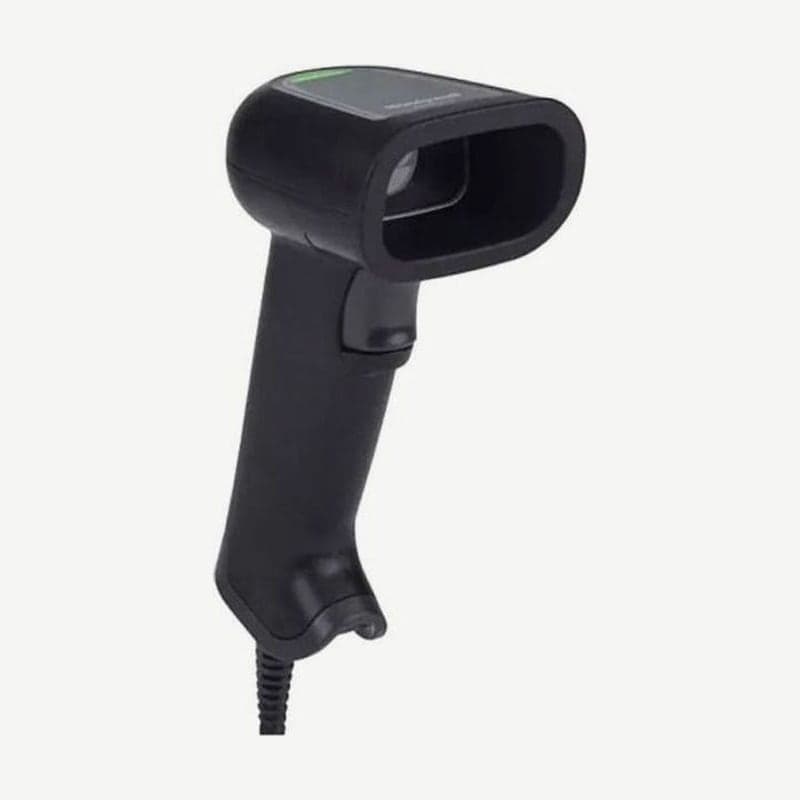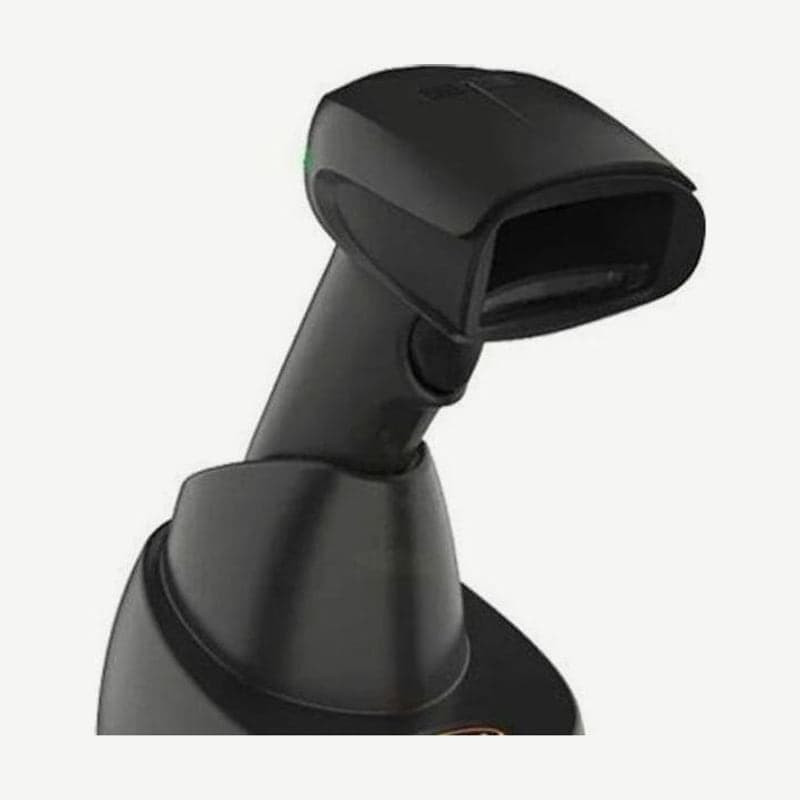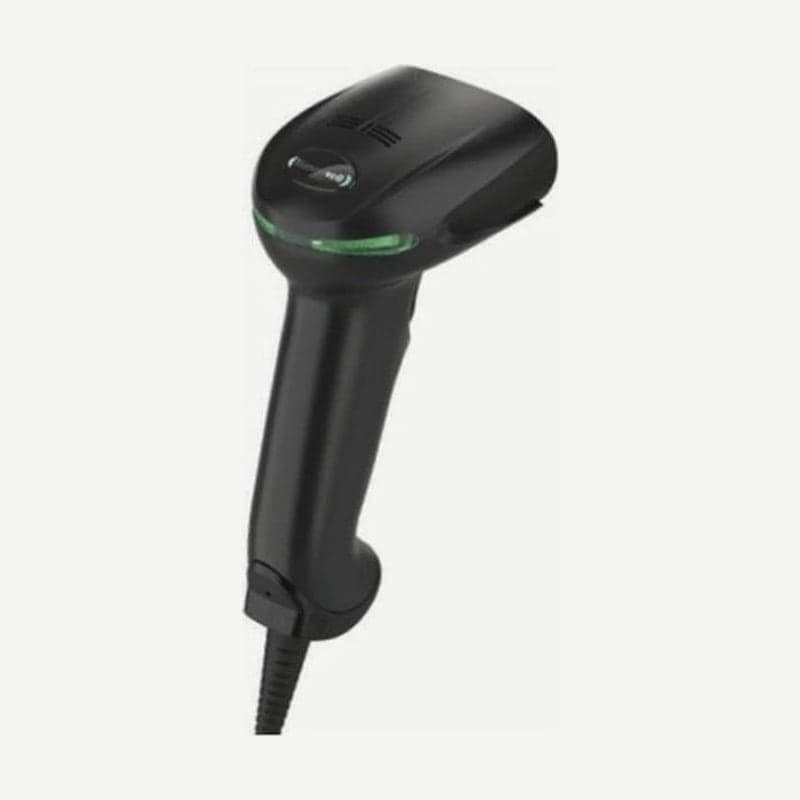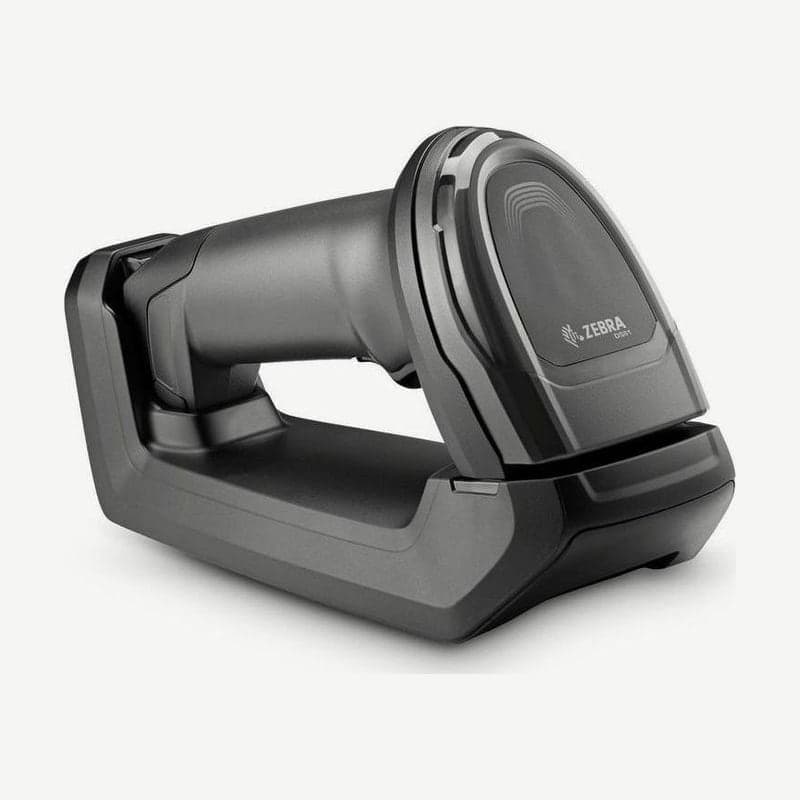
The DS8178 is a Bluetooth 4.0 wireless scanner that uses the same 1,280 x 960 sensor as the corded DS8108. What sets this model apart is its power source: it takes either a PowerPrecision+ battery or a PowerCap capacitor, which can be swapped in the store at any time.
Charging and PC connection require a CR8178-SC (standard) or CR8178-PC (presentation) cradle, ordered separately from the scanner. The SR configuration reads 100% UPC out to 61.0 cm.
Battery and PowerCap compared
| Item | PowerPrecision+ battery | PowerCap capacitor |
|---|---|---|
| Capacity | 2,500 mAh | 440 F |
| Scans per full charge (1 per second) | 65,000 | 2,000 |
| Full charge from empty | 2 h 15 min to 9 h 15 min by cradle and power source | 30 min on USB |
| Charge to 20% after the low charge warning | 3 h on USB | 90 s on USB (then 200 scans) |
| Scanner weight (SR and DL) | 232 g | 215 g |
| End-of-life warning LED | Yes | No |
If the Ready-to-Scan threshold is lowered from the factory 20% to 15%, PowerCap reads 100 more scans after only 35 seconds of USB charging following the low charge warning. For checkouts where the scanner always goes back to the cradle when not in use, PowerCap fits; for places where it is used away from the cradle for long periods, such as back-of-store receiving, the battery fits.
Battery full charge time by cradle and power source
| Cradle power | CR8178-SC (standard) | CR8178-PC (presentation) |
|---|---|---|
| Standard USB | 7 h 45 min | 9 h 15 min |
| BC1.2 USB | 3 h | 3 h 15 min |
| External 5 V | 4 h 30 min | 5 h |
| External 12 V | 2 h 15 min | 2 h 15 min |
On a standard USB port, the presentation cradle takes 1 h 30 min longer; on BC1.2 the difference is 15 minutes, and at 12 V there is no difference. Charging stops above 40°C, so if you keep scanning with the presentation cradle at that temperature, the battery drains, and the moment it runs out, scanning stops too. Charge and do presentation scanning at 0-40°C, preferably 5-35°C.
Steps to swap the battery for PowerCap
- Check with the Report Software Version barcode or 123Scan that the scanner firmware is CAACXS00-004-R00 or later. PowerCap works only on this version or later.
- With a coin, turn the battery cover knob counterclockwise all the way and lift the cover.
- Remove the battery, wait at least 5 seconds, then push the PowerCap in until it clicks.
- Check that the knob is in the open position, slide the cover on, and turn the knob counterclockwise all the way again with the coin.
- The first time, the scanner must be placed in the cradle for PowerCap to turn on. PowerCap ships fully charged but does not power the scanner until this step.
Battery life from the charge level LED
The scanner's charge level LED gauge stays on while it is in the cradle and turns off 4 seconds after removal. To check while using it handheld, hold the trigger for 3 seconds, and it shows again for 4 seconds after release.
| Charge level LED | Meaning |
|---|---|
| Green / amber / red | Charge 51-100% / 21-50% / 0-20% |
| Alternating green and red | End of battery life, charge 51-100% |
| Alternating amber and red | End of battery life, charge 21-50% |
| Red, blinking | End of battery life, charge 0-20% |
If you see one of the end-of-life patterns in the bottom 3 rows, it is time to replace the battery. The replacement battery for Korea and India is BTRY-DS81EAB0E-00K, and PowerCap has no end-of-life warning indication.
A scanner left at 0% for a long time and over-discharged appears off for a few minutes after being placed in the cradle, then the charge level LED lights red. Depending on cradle power, it takes up to 20 minutes to reach 3%, where scanning works again.
AutoConfig: copying cradle settings to the scanner
With AutoConfig on, the settings stored in the cradle move to the scanner the moment the scanner pairs with it. It is off at shipment, and the items copied are fixed: symbology settings, ADF and MDF rules, data parsing rules, Picklist, Digimarc, and so on.
During the 3-5 seconds the settings transfer, the green LED blinks and scanning stops. Settings for the same items entered separately on the scanner are overwritten, and AutoConfig does not work in multipoint mode, where several scanners connect to one cradle.
To load settings into the cradle, use 123Scan, setting barcodes, a Zebra Scanner SDK app, or SMS; when using setting barcodes, the scanner must be paired with that cradle for them to be saved. Alarm conditions and time settings for the loss alarm (Virtual Tether) are on the healthcare DS8178-HC page.