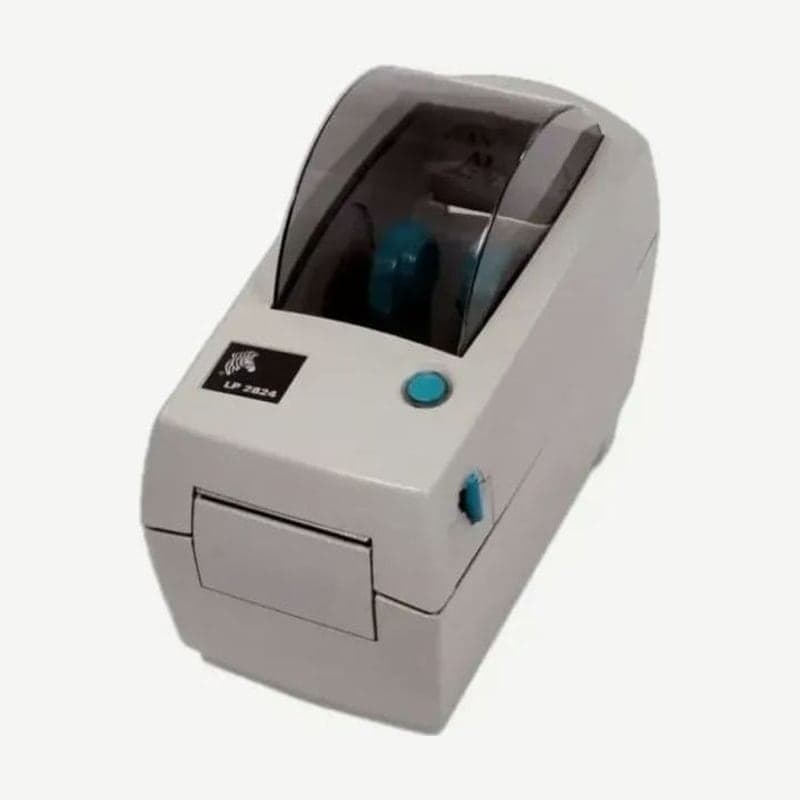
The LP2824 has only one control button, FEED, and reports status by the color of a single indicator. Media feed, length measurement, and communication diagnostics are all done by combining this button with the power switch. The Save-a-Print Head film that strips residue from the head and the cleaning cards are the 2-inch-wide size.
The LP2824 firmware includes the older EPL1 line mode along with EPL2 page mode. It is direct thermal only with no ribbon, and factory configurations are divided into the parallel model, the USB + DB-9 model, and the Ethernet + RJ-11 model.
FEED button behavior by media type
| Printer state | Short press | Press and hold |
|---|---|---|
| Labels, tags, fanfold media | Feeds one form | Feeds continuously; stops at the start of the next form when released |
| Continuous roll media | Feeds one line | Feeds continuously; stops at the next line the moment it is released |
| Cover open | No response | |
When new media is loaded and the FEED button is pressed, the LP2824 turns the platen to find the media first. If it cannot find media, the platen stops and the indicator lights red; if it cannot find the gap between labels within 279 mm (11 inches), it lights amber.
Status by indicator color
A green LP2824 indicator means normal operation, printing or waiting for data, and it is also green while waiting for a label to be taken in peel mode. Amber means the cover is open or there is a command syntax error.
If the indicator stays red when firmware is not downloading, the media has run out or the self-test at power-on failed. If the media has run out, load a new roll and press the FEED button; if the self-test failed, turn the power off and on again.
Communication diagnostics printing
When a job sent from the PC does not come out as a label, use communication diagnostics. With the power off, hold the FEED button while turning it on and release when the indicator flashes; the LP2824 sets the media sensor, prints its settings, and enters dump mode.
Sending a job in this state prints the received data as ASCII characters and hexadecimal. To finish diagnostics, press the FEED button once. One label printed with "Out of DUMP" comes out, and it returns to normal printing.
Platen roller replacement
- Open the cover and remove all media.
- With a pointed tool such as tweezers or a small flat-blade screwdriver, release the left and right locking tabs and rotate them forward.
- Lift the platen out of the lower frame.
- Check that the right bearing is fitted on the new platen shaft, set it down with the gear on the left, and return the tabs until they click.
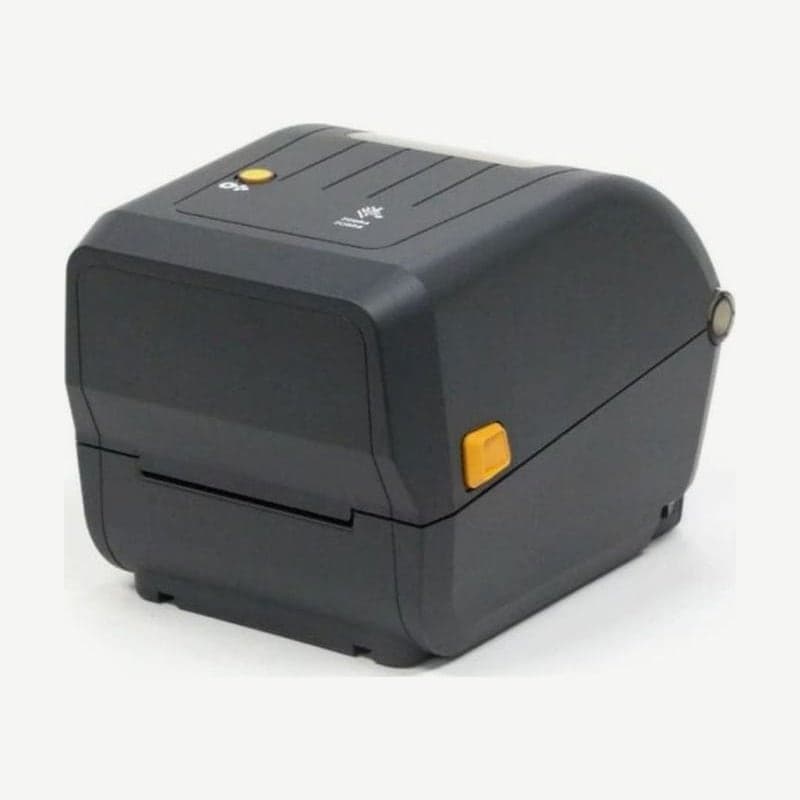
Line mode formats and the ZD411
The languages the ZD411 accepts are ZPL II, EPL2, XML, ZBI, and PDF Direct, and EPL1 line mode is not on this list. So before replacing an LP2824 with a ZD411 direct thermal model, first check with a status report whether line mode is on. Recreate formats printed in line mode in EPL2 page mode or ZPL, test-print them first on the LP2824 switched to page mode with the <ESC>EPL2 command, and then send them to the ZD411.