If scanned numbers only need to appear at the cursor in Excel or a web page, keep the scanner in USB keyboard (HID) mode. Software that opens a COM port to receive data, such as POS, weighing, and production management programs, needs USB virtual COM or RS-232, and you switch by scanning one host setting bar code from the manual.
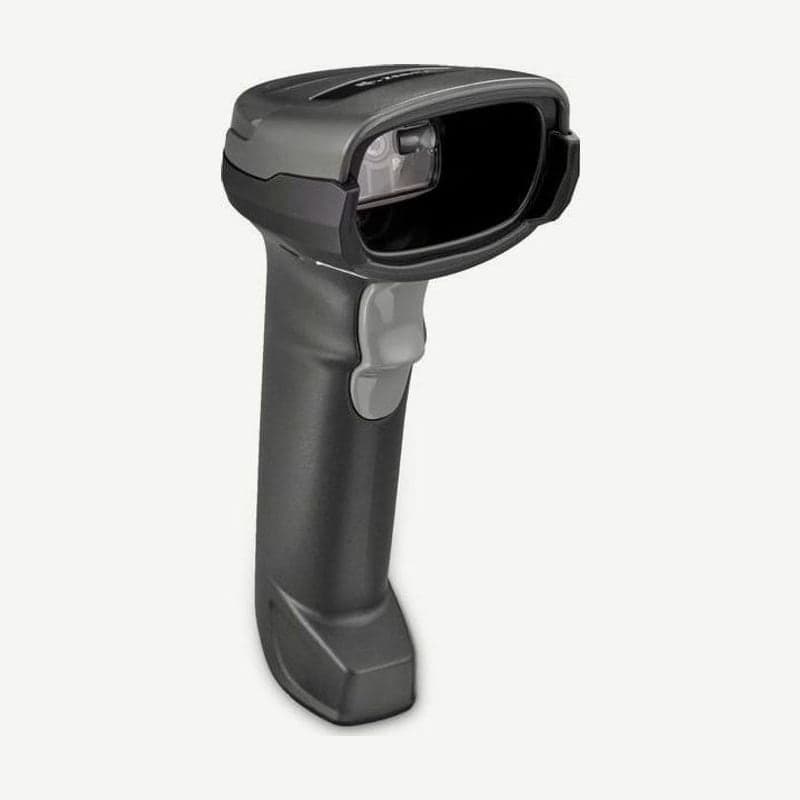
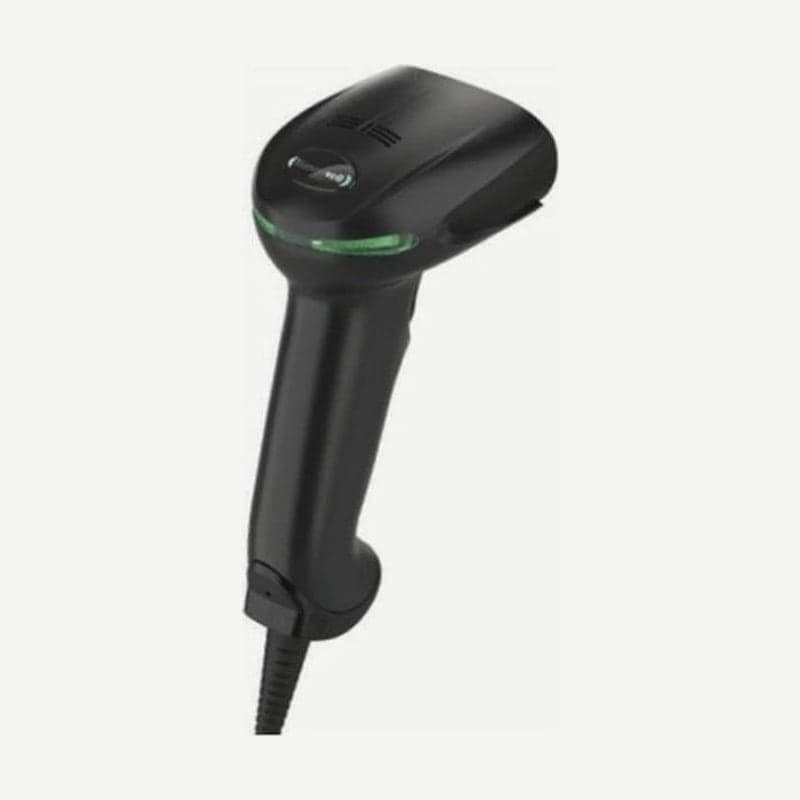
The Zebra DS2208 and Honeywell Xenon XP 1950g start in keyboard mode when you plug in the USB cable. If a program doesn't receive data, suspect a mismatched connection mode before suspecting a fault.
How data travels in the 3 connection modes
| Connection mode | Device the PC detects | Where the data goes | DS2208 setting bar code | Xenon XP 1950g setting bar code |
|---|---|---|---|---|
| USB keyboard (HID) | Keyboard | The input field where the cursor is | USB Keyboard HID (default) | USB Keyboard (PC) (default) |
| USB virtual COM | COM port | The program that opened the COM port | USB CDC Host | USB Serial |
| RS-232 | PC serial port | The program that opened the serial port | Standard RS-232 (default with an RS-232 cable) | RS232 Interface |
In keyboard mode, Windows asks to install the HID driver the first time you connect; click Next through all the choices and click Finished on the last one. Virtual COM requires installing the manufacturer's driver first, and RS-232 passes data only when its speed and parity match the program on the PC.
The 2 settings with HID in their names are not keyboard input. The DS2208's "USB HID POS" communicates with UWP apps on Windows 10, and Honeywell's "USB HID Bar Code Scanner" is also a separate setting from USB Keyboard (PC).
3 input problems in USB keyboard mode
Keyboard mode works the same as a person typing, so if the cursor is in Notepad, even a 13-digit number goes into Notepad. If uppercase and lowercase letters come out reversed on a PC with Caps Lock on, the DS2208's "Override Caps Lock Key" bar code makes it send the original characters regardless of the Caps Lock state.
If the bar code appears on screen but you have to press Enter or Tab yourself to move on, the terminating character (suffix) is missing. On the Honeywell 1950g, scanning the USB Keyboard (PC) bar code also adds a CR (Enter) suffix; on the DS2208, scan the separate "Add Enter Key" bar code in the Quick Start Guide.
If a PC needs to receive data slowly, increase the interval between keystrokes with the DS2208's USB Keystroke Delay. There are 3 options: No Delay (default), Medium Delay (20 msec), and Long Delay (40 msec).
4 steps to switch to a USB virtual COM port
If you scan the virtual COM bar code before installing the driver, the scanner stalls while the USB connection is being recognized, so follow the 4 steps below in order.
- For the DS2208, go to zebra.com/support, Support & Downloads > Barcode Scanners > USB CDC Driver, and download and install the 64-bit Windows driver (Zebra_CDC_ACM_Driver_(x64)v2.15.0004.exe) or the 32-bit driver.
- For the Xenon XP 1950g, download the latest serial driver from the Honeywell website under Get Resources - Downloads - Software. Macs recognize the scanner as a USB CDC class device automatically and need no driver.
- Scan the "USB CDC Host" bar code once on the DS2208, or the "USB Serial" bar code on the 1950g. The DS2208 resets and plays the power-up beep again.
- Find the new COM number in Device Manager and change the program's port setting to that number. The 1950g uses the next available COM port number and needs no separate baud rate setting.
If a Zebra scanner stalled because you switched without the driver, unplug the USB cable and plug it back in to restore power, then hold the trigger for 5 seconds. When it powers up using an alternate USB configuration, scan another USB Device Type bar code to switch back.
If a Honeywell scanner stops scanning after you scan USB Serial on a PC with an older driver, uninstall the older driver and install the latest one, or delete the device entry in Device Manager.
Matching communication settings for a direct RS-232 connection
Even over RS-232, the default speed differs by manufacturer. The DS2208 uses 9600 bps, 8 bits, no parity, and 1 stop bit. The Honeywell RS232 Interface bar code sets 115,200 bps, 8 bits, no parity, and 1 stop bit, and also adds CR and LF suffixes and changes the trigger to manual mode.
The Zebra DS2208 uses TTL-level signals, so for equipment that requires RS-232C signal levels, use Zebra's conversion cable. If needed, plug a power adapter into the serial connector end of the RS-232 cable.
On Honeywell scanners, connect the cable with the PC turned off, tighten the 2 screws on the serial connector, and then turn on the PC. If a Zebra scanner connected over RS-232 gives low/low/low/extra low beeps while idle, that is an RS-232 receive error, so set the scanner's parity to match the PC setting.
Checking that a setting bar code was read, and resetting
When the DS2208 reads a setting bar code correctly, it gives a fast warble beep and the LED turns green; when it reads one incorrectly, it gives low/high beeps. Changed settings are stored in non-volatile memory and kept even when the power is off, so you only need to scan once.
Setting bar codes in a PDF on a monitor can also be read; zoom the screen in far enough that the bars and spaces don't merge before you scan.
If things are so tangled that you don't know what you changed, Zebra scanners return to factory settings with "Set Factory Defaults." Honeywell scanners return to factory settings only when you scan the 2 bar codes "Remove Custom Defaults" and "Activate Defaults" in that order.
If setting bar codes don't work at all, suspect that parameter bar code scanning is locked. If you mistakenly select CUTE as the RS-232 host on the DS2208, even Set Defaults is disabled, so scan "Enable Parameter Bar Code Scanning" first, then select the host again.
Reading DS2208 transmission errors from beeps
If a bar code is read but nothing reaches the PC and you hear 4 long low beeps, it is a transmission error. The host type doesn't match the actual connection or the communication settings don't match, so scan the setting bar code from the table again, and for RS-232, match the PC-side settings.
If you hear 4 short high beeps as you try to scan, USB initialization hasn't finished, so scan again after a few seconds. Hearing the power-up beeps 2 or more times when the PC restarts is normal: the USB bus is cycling power to the scanner.
On the cordless DS2278, the cradle connects to the PC, and you choose the connection mode the same way, by scanning a host setting bar code. Bluetooth pairing and disconnections are covered in wireless barcode scanner disconnections, and models by use in types of barcode scanners.