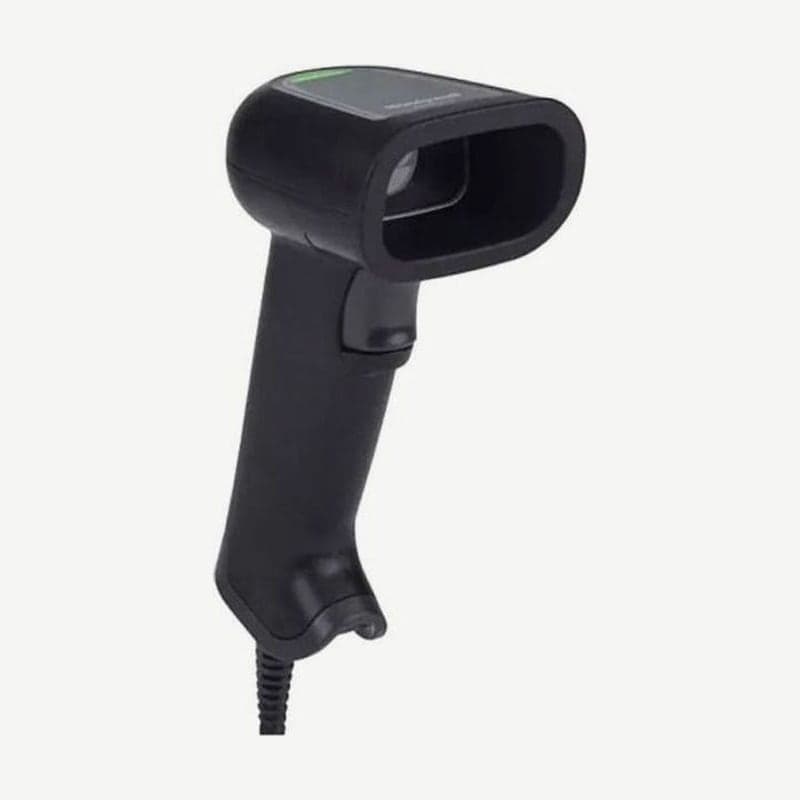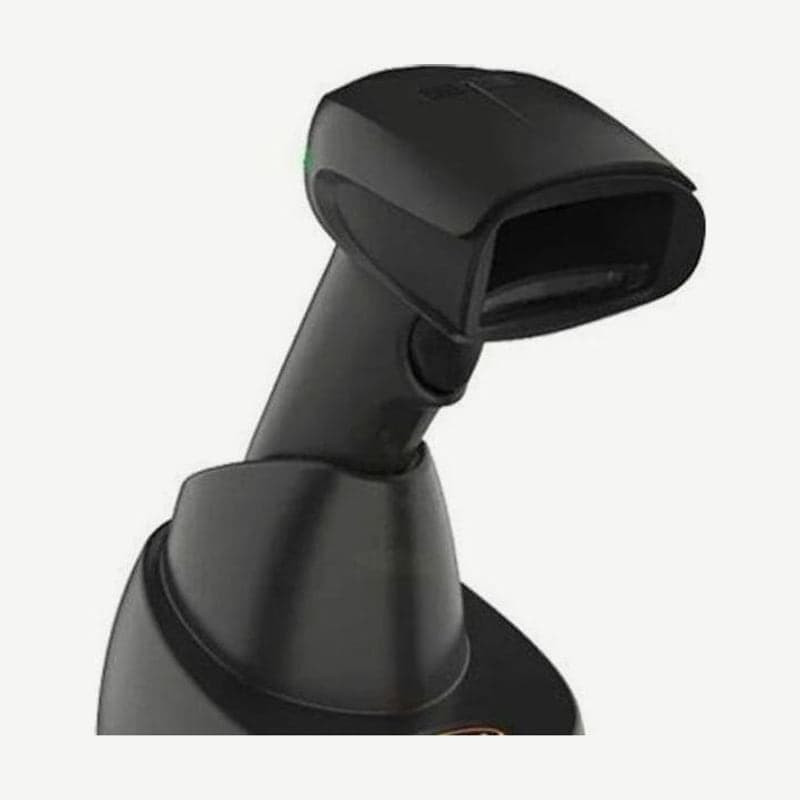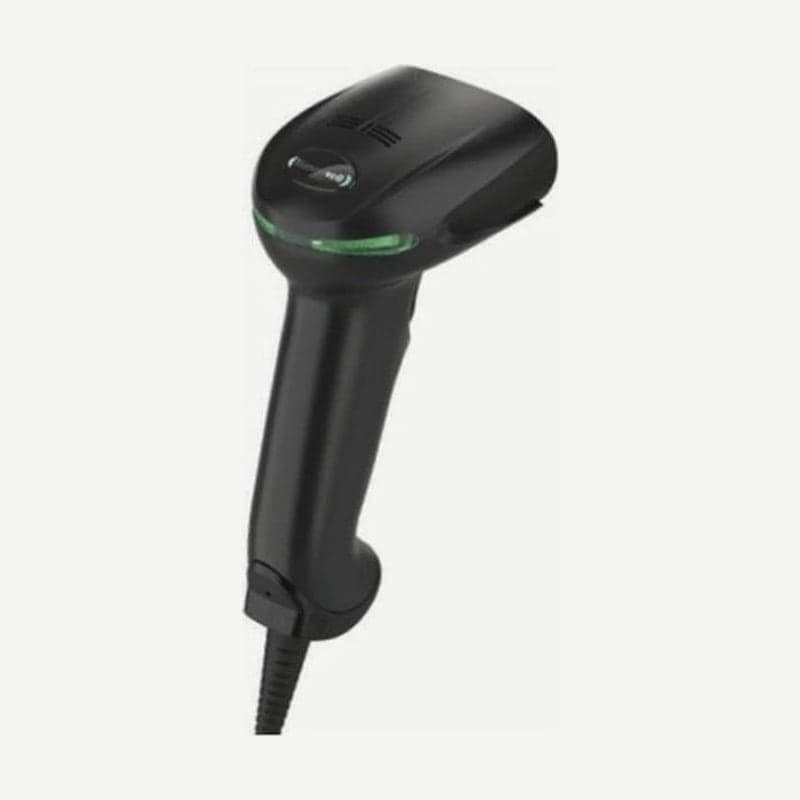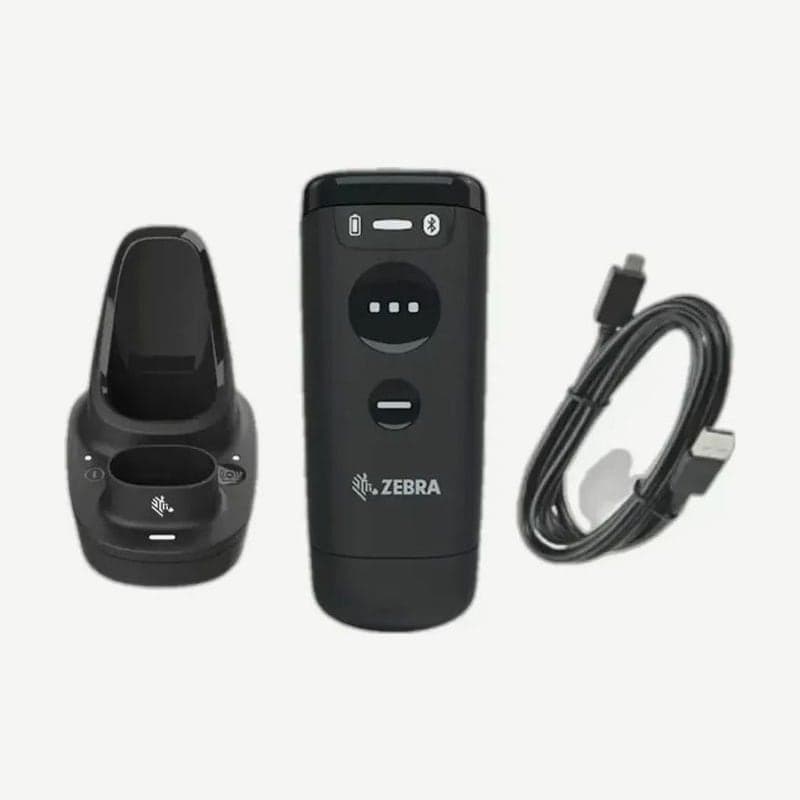
The CS6080 is a companion scanner that becomes wireless with a battery fitted, and corded with a USB converter cable fitted in the battery's place. Whether you first bought the wireless version (CS6080-SR40004VZK) or the corded version (CS6080-SRK0004VZK), swapping parts lets you use it the other way, so one model covers both fixed checkout use and store inventory counts.
Switching between wireless and corded
- To switch from wireless to corded, press the latch on the bottom and pull out the battery.
- Fit the 2.1 m USB converter cable (CVTR-U70060C-04) into the empty slot.
- Plug the other end of the cable into a USB port on the PC or POS.
To switch back, press the latch to remove the cable and push the battery in until it clicks. Weight is 83 g wireless and 56 g corded. When placing it at a checkout corded, put it in the Gooseneck Intellistand (STND-GS0060C-04) or cup (CUP-GS0060C-04).
Charge times on the cradle and Qi pad
The standard cradle CR6080-SC100F4WW charges 1 scanner and 1 spare battery together, and the USB-C cradle cable (CBL-CS6-S07-04) is purchased separately. Insert the scanner standing up, battery end first.
Filling an empty battery takes 6 hours on a standard USB port and 3 hours on a BC1.2 charging port. A full charge lasts 18 hours and 13,000 scans at a checkout pace of one scan every 5 seconds.
A scanner with the battery fitted charges when placed button side up on a commercially available Qi wireless charging pad. This reduces the need to clean the charging contacts, but third-party pads do not guarantee charge times. Spare batteries use contacts, so they cannot be charged on a pad.
Charging stops when the ambient temperature exceeds 40°C, so charge indoors at 0-40°C. For many units, use the 4-scanner ShareCradle (CR6080-SC400F4WW) and the 4-battery ShareCradle (CR6080-BC40004WW); both include a power adapter, and only a 3-wire grounded AC cord needs to be prepared separately.
4 host connection methods
| Setting barcode | Connects to | Bluetooth mode |
|---|---|---|
| Cradle Bluetooth Classic (default) | Pairs with the cradle, which passes data to the PC by cable | Classic and BLE |
| HID keyboard | Directly to a PC, tablet, or smartphone, input like a keyboard | Classic and BLE |
| SSI | Zebra mobile computers, scanner SDK apps | Classic, BLE, and MFi |
| SPP | Programs that take input like a serial port | Classic |
To pair with the cradle, you can scan the pairing barcode on the cradle, or, since Pair On Contacts is on by default, simply insert the scanner into the cradle. For NFC-capable smartphones and tablets, touch the NFC area on the bottom of the scanner to pair.
Bluetooth security defaults to Low, so it connects without a passkey. Raised to Medium or High, a passkey must be scanned on hosts that do not support NFC out-of-band (OOB) pairing, and High is used only with BLE hosts.
The USB connection of the corded CS6080 or the cradle defaults to USB keyboard HID, and depending on the POS system, change it with the IBM handheld USB, IBM OPOS, or SNAPI barcode.
Features for running many units
With AutoConfig turned on, the cradle sends its stored settings down to the scanner when pairing. When a scanner used at a self-checkout is paired with an inventory cradle, the barcode types, ADF and MDF rules, and GS1 label parsing (Label Parse+) rules change to that cradle's settings, and for the 3-5 seconds it takes to receive them, the blue LED blinks and scanning stops. AutoConfig is off at shipment and is turned on with 123Scan or setting barcodes.
Press the page button on the cradle for about 1 second, and all paired scanners beep, blink, and vibrate, so you can find a misplaced CS6080. This button is on by default, and scanners outside wireless range (100 m for Class 1) do not respond.
With 123Scan, plug up to 10 units into a powered USB hub (0.5 A per port) and load settings and firmware all at once.