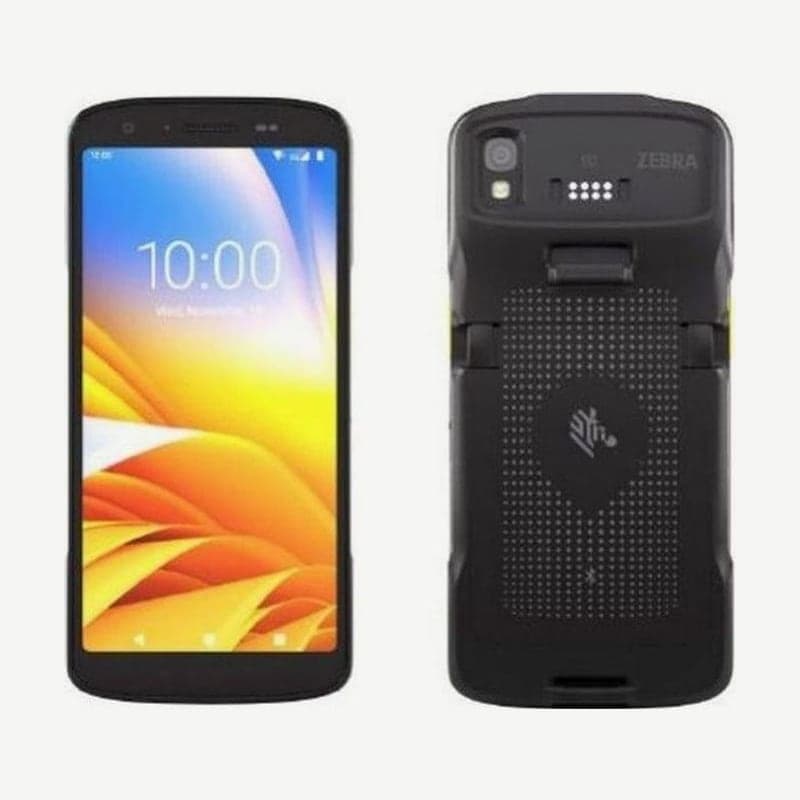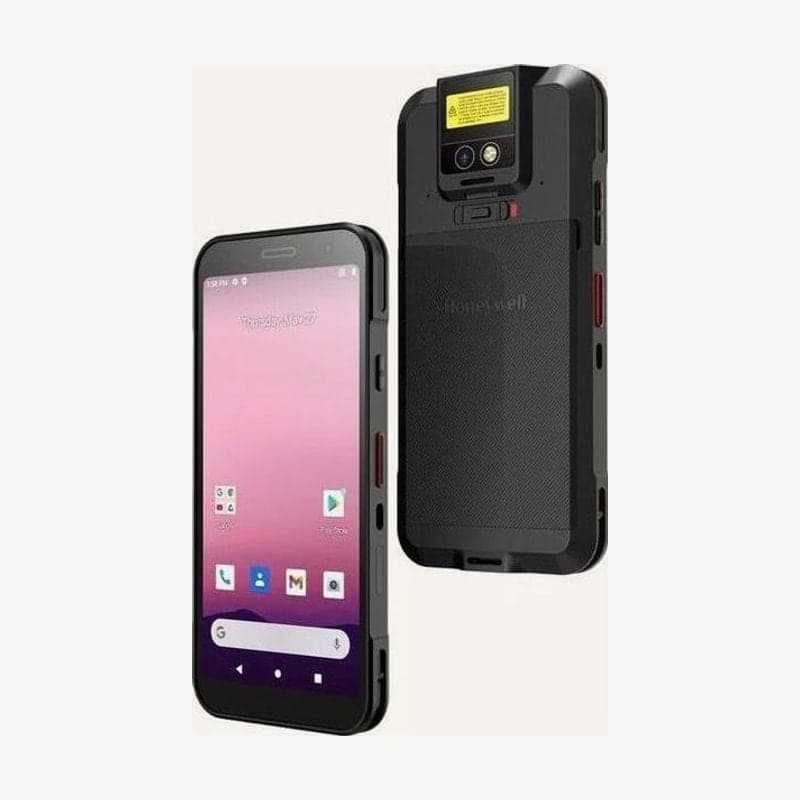
Decide when to replace an industrial PDA battery by the status the device reports, not by how many years it has been in use. On the Zebra TC22, a battery has reached the end of its life when the charging LED turns red or Battery Manager shows its status as Decommission; until then, check the charging environment and contacts first.
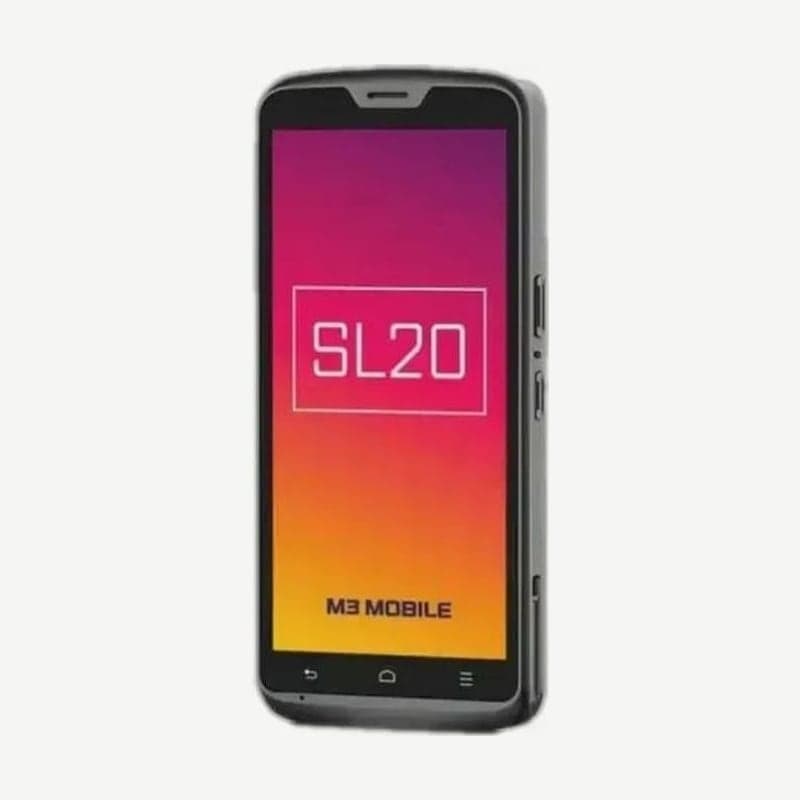
Whether you must turn the device off to replace the battery depends on the model. The TC22 and the Honeywell CT32 are turned off before replacement, while the M3 Mobile SL20 supports hot swapping, which lets you replace the battery with the device on.
Battery capacity and replacement method by model
| Model | Battery | Charging time | Replacement method |
|---|---|---|---|
| Zebra TC22 | Standard 3,800 mAh, extended 5,200 mAh | From fully depleted to 80%: under 1 hour 20 minutes (standard), under 1 hour 50 minutes (extended) | Replace with the power off |
| Honeywell CT32 | 3.8 V 4,500 mAh (17.1 Wh), or 3.85 V 23.6 Wh | Fully charged in under 3.5 hours | Replace with the power off |
| M3 Mobile SL20 (Android 13 version) | 3.8 V 5,000 mAh | Fast charging supported | Hot swap |
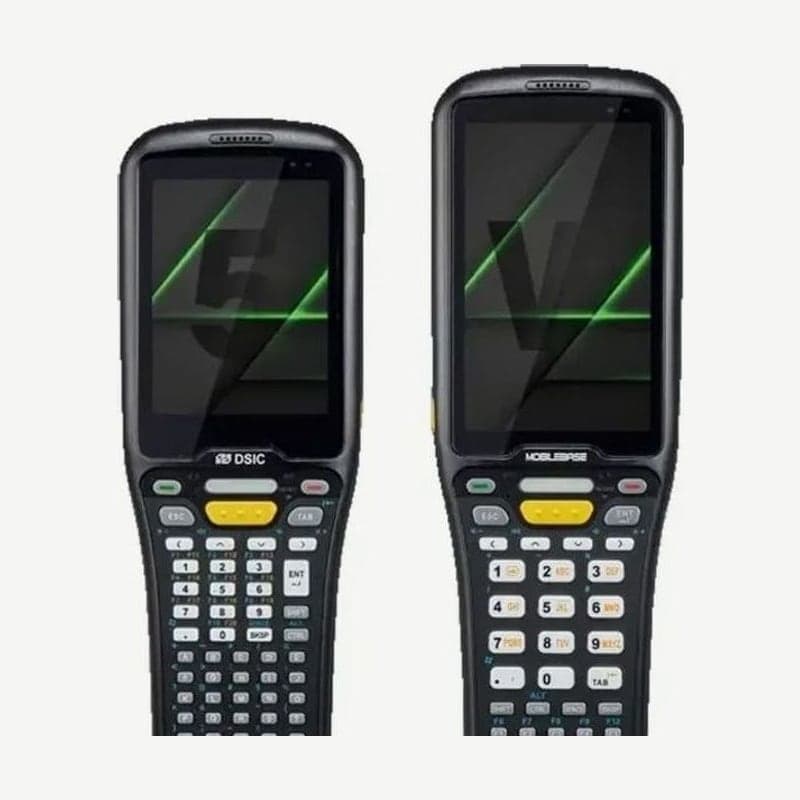
In the Daeshin Information & Communications DS series, the DS5 line and the DS50 use 5,800 mAh batteries, and the DS60S uses a 5,070 mAh (typical) battery. For models with separate standard and extended batteries, like the TC22, check the Battery part number under Advanced info in Battery Manager and order the same one. The standard battery is BTRY-TC2L-2XMAXX-01, and the extended battery is BTRY-TC2L-3XMAXX-01.
Indications that it's time to replace the battery
On the TC22, if the LED blinks red once every 4 seconds while charging, the battery is charging but has reached the end of its useful life; a solid red LED after charging finishes means the same thing. Blinking amber means the device is charging, and solid green means charging is complete.
If the LED blinks fast, twice a second, there is a charging error. If it is amber, check whether the ambient temperature is too low or too high, or whether charging has gone on without completing, typically for more than 8 hours. If the same fast blink is red, the charging error is combined with an end-of-life battery, so replace the battery.
Reading the TC22 Battery Manager
Swipe up from the bottom of the home screen to open the Battery Manager app, or go to Settings > About phone > Battery information. Check the charge level with the device removed from the cradle or charging cable.
The Wear bar on the first screen turns red the moment it exceeds 80%, so order a replacement battery in advance at that point. If the Health item shows Decommission, the battery has reached the end of its life; Dead means the battery has no charge left, so replace it with a new one right away.
To check the numbers, open Advanced info. A battery whose Battery usage number is equal to or greater than the Usage decommission threshold is due for replacement, and Base cumulative charge counts only charging done with Zebra charging equipment. If the Backup Battery level stays at 1% or less for a long time, have the internal backup battery serviced.
If the Health item shows one of 5 statuses, Over Current, Over Voltage, Charge error, Below Temperature, or Failure Detected, it calls for an administrator's attention, so have the device and battery inspected at the Wooju OA service center. The serial number on the battery label matches the Battery serial number in Advanced info, so use it to pick out worn batteries at sites where batteries rotate among several devices.
Why a battery won't charge or charges slowly
The TC22 battery and chargers charge only at ambient temperatures of 5 to 40°C. When the surroundings get hot, around 37°C, the device or cradle briefly turns charging off and on to protect the battery temperature.
When you charge the CT32 from a PC through USB Type-C, the PC must supply at least 5 V 0.5 A for charging to work, and if the device draws more current than it receives, charging won't progress at all. Charging while in use also lengthens the time to a full charge accordingly.
If you see grease or dust on the charging contacts, wipe it off. On the TC22, remove the battery, then rub the contacts on the battery and on the device at least 3 times with a cotton swab moistened with isopropyl alcohol, and repeat the same motion at least 3 times with a dry swab so no cotton residue is left behind. Clean the cradle contacts the same way after unplugging the DC power cable, and wait 10 to 30 minutes for the alcohol to dry.
4 checks before replacing the battery
- On the TC22 and CT32, press and hold the Power button, turn the device off with Power Off, then remove the battery. On the TC22, do not insert or remove the microSD card while replacing the battery.
- On the CT32, check that the device and battery are completely dry before inserting the battery. Mating them while wet damages the device and battery.
- Use genuine batteries from the manufacturer. Zebra batteries carry a hologram for IEEE1725 authentication, so you can confirm they are genuine.
- On the SL20, replace the battery without turning off the power or closing running apps; WWAN, WLAN, and Bluetooth sessions are temporarily maintained during the swap. On the TC22 and CT32, reconnect to your work apps after turning the device back on.
Settings and storage that extend battery life
The TC22 displays a notification to charge soon when the charge falls below 15%, a notification that you must charge below 10%, and turns off below 7%. If the battery doesn't last a full day, first set the screen timeout to 15 seconds and brightness to 30 to 50%, and turn off unused radios, before replacing the battery.
A battery that has been dropped hard can overheat, and the device should not be left in hot places such as inside a car or next to a heater. Do not use a battery you suspect is damaged; send it to the Wooju OA service center for inspection.
At sites that run shifts, keep a spare battery charger on hand. The 4-Slot Battery Charger for the TC22 charges spare batteries to 90% in under 4 hours, and in each slot an amber LED means charging, green means complete, and red means the battery has reached the end of its life. For spec comparisons by model, see how to choose an industrial PDA.